The uzqr.uz account: sign-in, alerts and the table tent
A venue manages its UzQR codes in the uzqr.uz account. This page covers the three things almost every café needs: signing in with an E-IMZO signature, getting payment alerts in Telegram and downloading the table tent with the code. The account is in Russian or Uzbek; the screenshots show the Russian interface and the fictional Laylak Coffee.
E-IMZO sign-in
The account opens on a computer with the E-IMZO electronic signature of the director or of an employee holding the organisation's signature. Codes appear in it once the bank has connected the venue to UzQR — how to get UzQR.
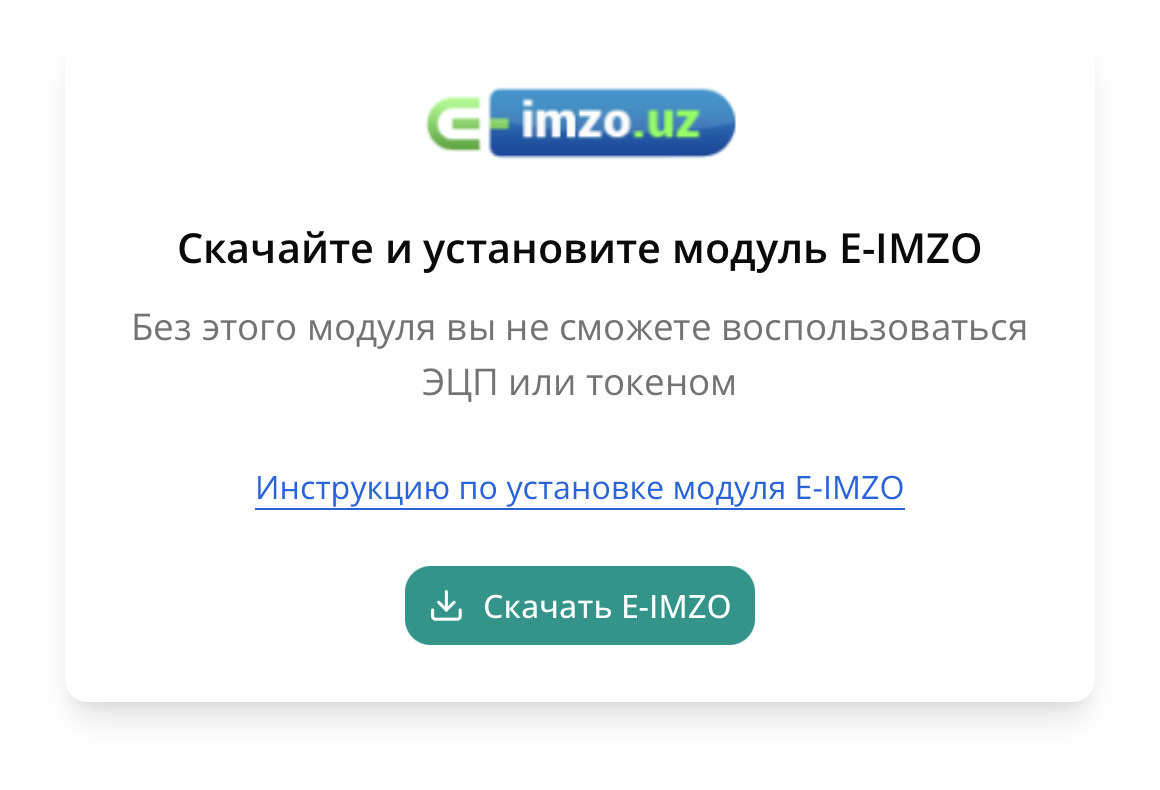
The E-IMZO module. Open uzqr.uz. If the computer has no E-IMZO module, the site asks you to install it: the «Скачать E-IMZO» (Download E-IMZO) button, with installation instructions next to it.
Signature. Start E-IMZO, reload the page, choose the organisation's key and enter the key password.
Without the E-IMZO module signing in does not work — the site offers the download itself.
Your codes
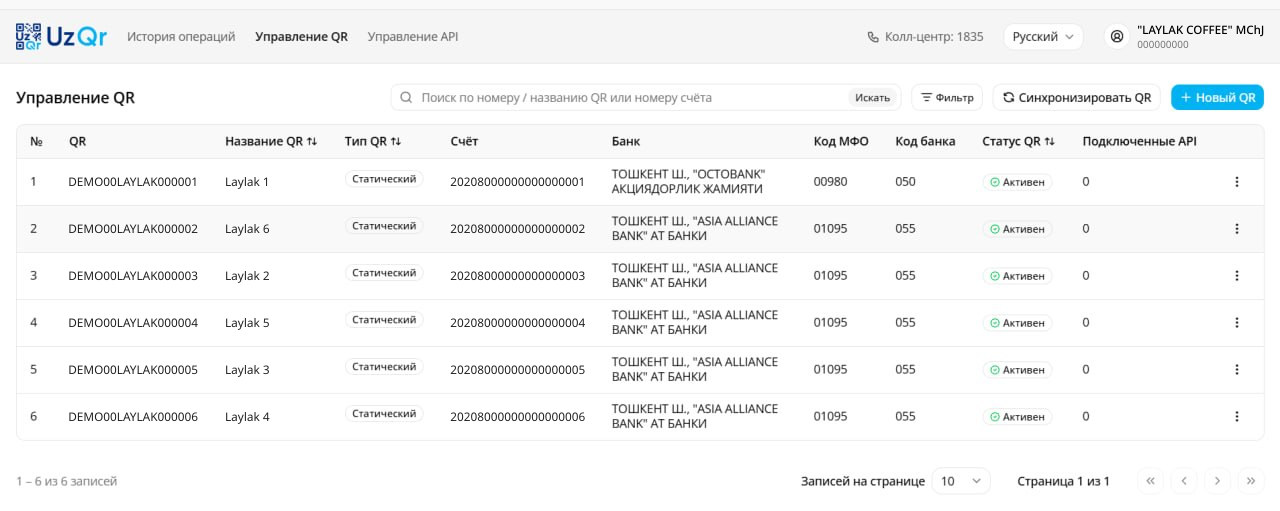
After signing in you land in Управление QR (Manage QR): all the venue's codes, their type — static or dynamic — account and bank. Each code has a ⋮ button on the right; alerts and the table tent are set up from there.
Manage QR. One code, one table tent; a chain may have several, one per branch or till.
Payment alerts in Telegram
The account posts a message about every payment by a static code to a Telegram group. Add our bot to that group too, and QR✓OK matches the payments to pre-bills and shows them in your statistics.
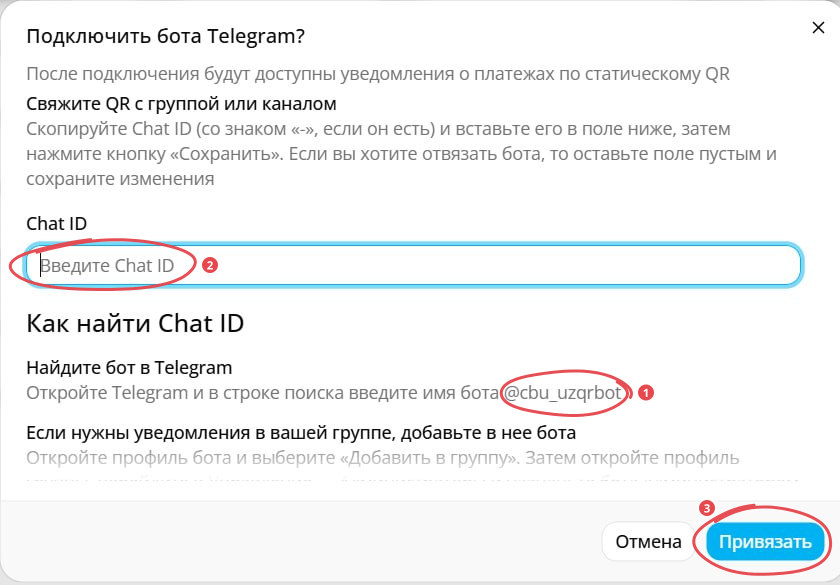
Group. Create a Telegram group and add the bank's bot @cbu_uzqrbot and @qrokuzbot. It helps to add the cashier and the manager as well.
Group number. Send /chatid in the group — the bot replies with the group's number. Copy all of it, including the «-» at the start.
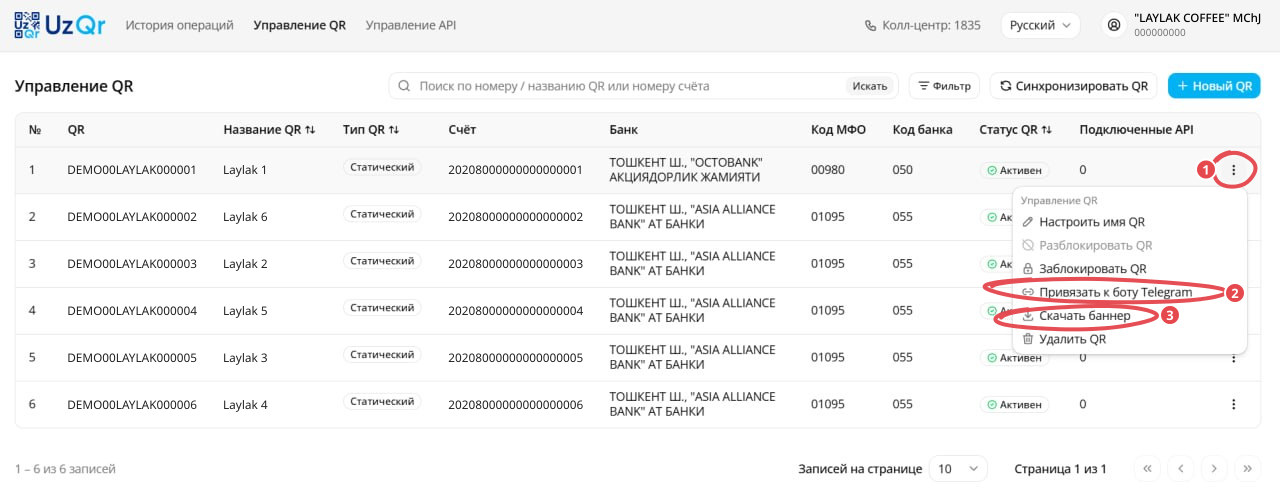
Link the code. In the account, on the code, press ⋮ → «Привязать к боту Telegram» (Link to Telegram bot).
Chat ID. Paste the group number into the «Chat ID» field and press «Привязать» (Link). With several codes, repeat for each.
The code menu: 1 — the ⋮ button, 2 — «Привязать к боту Telegram» (Link to Telegram bot), 3 — «Скачать баннер» (Download banner).Linking the bot: 1 — the bank's bot to add to the group, 2 — the group number, 3 — «Привязать» (Link).
To unlink the bot, open the same dialog, clear the field and save. Alerts come for static codes only; dynamic codes connect to the till with an API key.
The table tent
In the code menu choose ⋮ → «Скачать баннер» (Download banner) — the table tent with your code, ready to print. It goes on a table, the counter or a shop window. Some banks bring the tent themselves.
If the venue is connected to QR✓OK, a tent on every table is not needed: we print UzQR right on the pre-bill, already with the amount and the bill number.
 QR✓OK
Connect your venueConnect
QR✓OK
Connect your venueConnect