 QR✓OK
Connect your venueConnect
QR✓OK
Connect your venueConnect
If the venue runs on Poster, QR✓OK is connected right from the register — no request on the website. You need the UzQR plate from the bank, a manager or owner who can log in to the register, and about 10 minutes.
Installing QR✓OK for venues as a dealer? The partners' guide — QR✓OK for Poster dealers.
Install the QR✓OK app on the venue's Poster account. The app is under Poster's review and is not in the catalogue yet: write the Poster account name (like xxx.joinposter.com) to @qrokuzbot — we will open access and send you the install link. All points of sale of the account and the staff list appear on our side by themselves.
Close and reopen Poster on every register. The register receives its QR✓OK key exactly when it starts.
The manager or owner logs in to the register with their own PIN, opens «Пречек с UzQR — настройки» on the order screen and taps Показать код для подключения. A QR code appears on the register screen — scan it with your phone camera: our bot @qrokuzbot opens in Telegram, already tied to this venue. The code lasts 30 minutes and works in one chat; the register screen marks the setup done by itself.
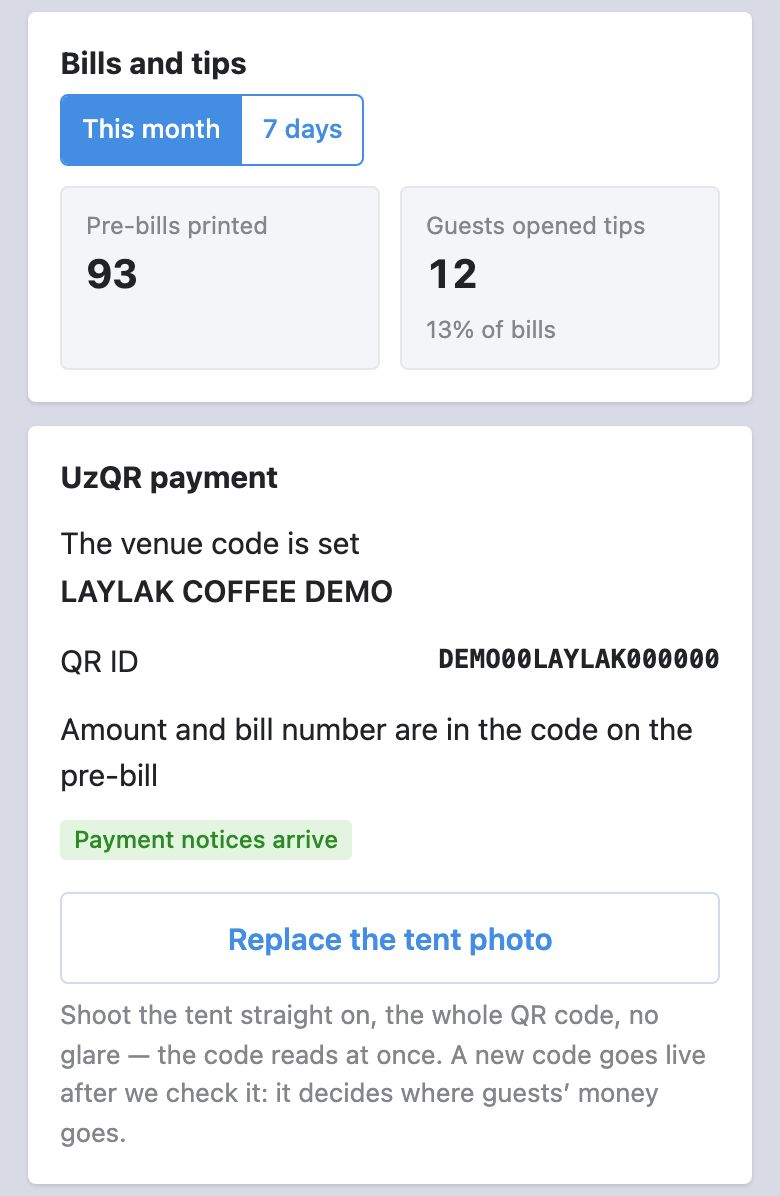
Send the bot a photo of the UzQR plate — straight on, the whole QR code, no glare. Instead of a photo you can paste the code text copied by the phone's scanner. If the chain already has a working branch, one tap copies its code and tips set-up.
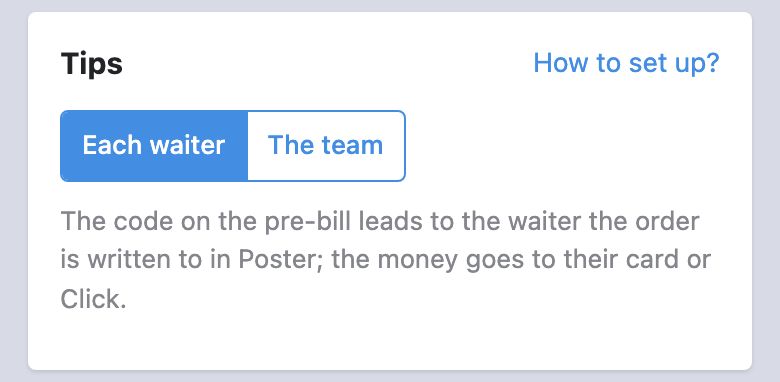
Choose how tips are received:
More on the modes and what to set up in Poster: tips in Poster.
Go back to the register and make a test print. Once the set-up is done, the settings window offers a test pre-bill: check that the UzQR code is there and a phone camera reads it.
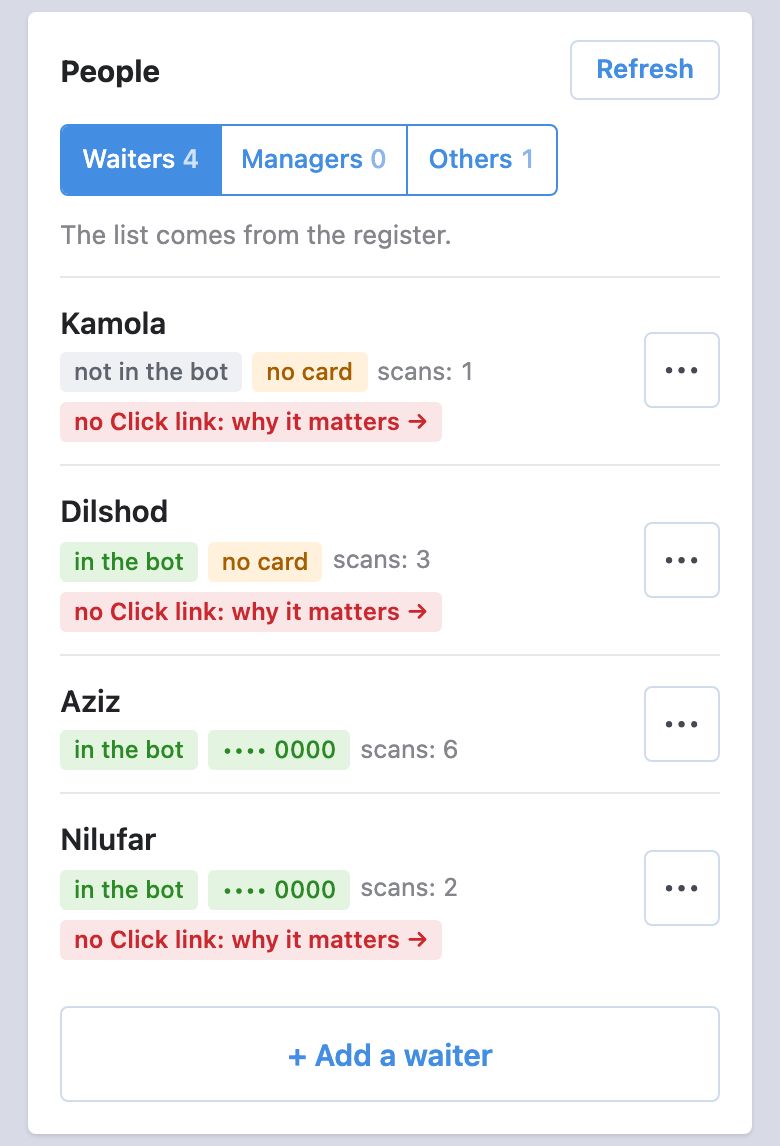
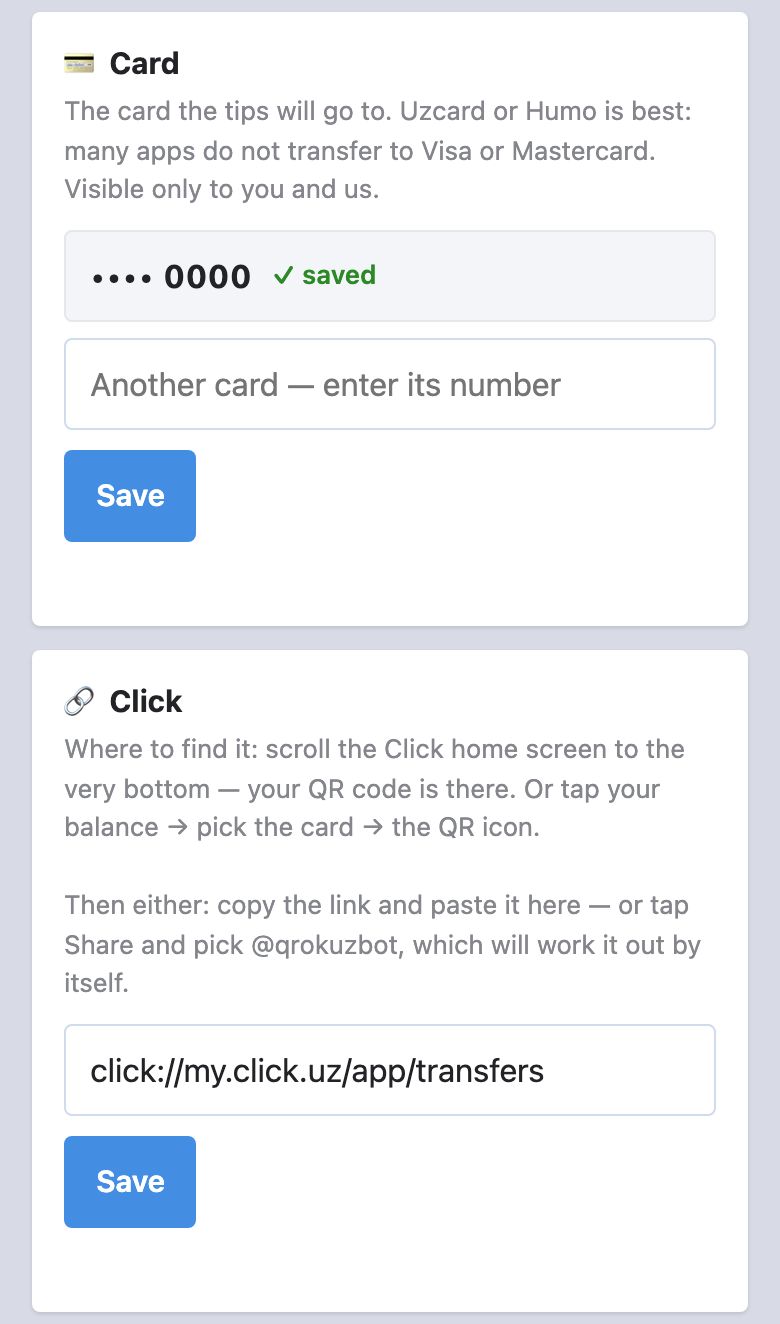
Add the waiters' phone numbers in Poster: Доступ → Сотрудники (Access → Employees) — or add the waiters right in the bot: the manager's page → «Add a waiter». Each waiter gets an SMS with a link to the bot: they open it and add a card number or a Click link. From then on the tips code on the pre-bill leads to their page.
Waiters can also run orders from their phones — the register with our app prints the kitchen tickets and pre-bills. That is the «Poster+» plan, switched on on request: «Waiter on a smartphone».
Create a Telegram group and add the bank's bot @cbu_uzqrbot and @qrokuzbot. Send /chatid in the group — the bot replies with the group number. In the uzqr.uz cabinet, next to your code tap ⋮ → «Привязать к боту Telegram» (Link to Telegram bot) and paste that number. Payment notices will come to the group, and we will show payment statistics by pre-bill. Step by step with screenshots.
The cabinet opens in the bot: Menu → «Manage». It lists the waiters — who is in the bot and who can receive tips — with invitations, the tips mode, statistics and the UzQR plate.
Questions — to @qrokuzbot, business days 9:00–21:00 Tashkent time. Terms — in the Public Offer.