 QR✓OK
Connect your venueConnect
QR✓OK
Connect your venueConnect
Nothing is installed on the iiko register. The pre-bill prints from our template — with the UzQR code for the bill amount and the tips QR — when the waiter presses the usual «Пречек» button. Staff have no extra buttons. The template is set up once by the iiko integrator or the venue's IT person in iikoOffice — about 15 minutes.
Installing QR✓OK for venues as an integrator? The partners' guide — QR✓OK for iiko integrators.
The pre-bill is the same as at venues on Poster: the logo and name, table and waiter, the dishes, the amount to pay, then the UzQR code and the tips code.
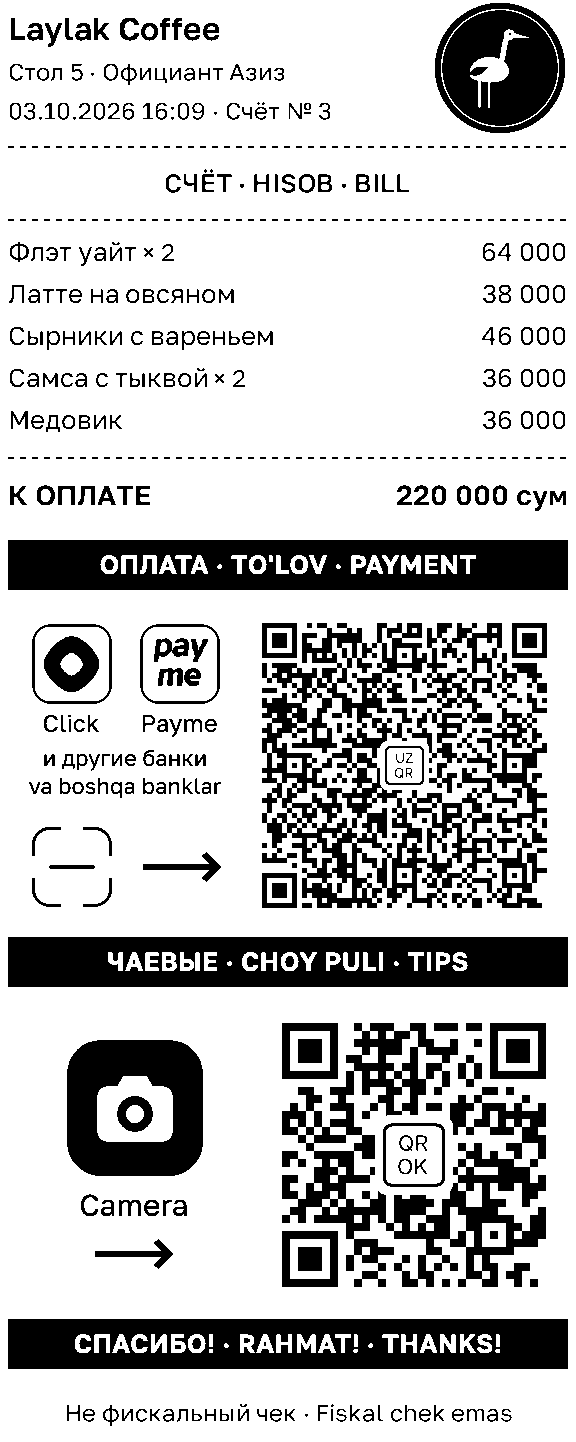
The pre-bill is drawn as a picture, so the printer must print graphics — any 80 mm ESC/POS printer does. If a register cannot draw the picture, the same pre-bill prints as text, with the codes drawn by the printer itself.
While printing, the register tells us about the pre-bill and takes the venue's current UzQR code and logo from our server. Without internet the pre-bill still prints — with what the register kept last time — and is held up by no more than a second and a half.
The codes print only while there is something left to pay on the bill.
The register picks up a new UzQR code, logo or plan by itself; the template file does not need replacing.
Everything is done in iikoOffice. We send the file qrok-iiko-prebill-<number>.cshtml — the whole pre-bill. For a venue that wants to keep its own pre-bill there is qrok-iiko-prebill-<number>-pieces.txt: only our block with the codes, in three pieces; how to paste them is written at the top of the file.
To roll back: tick Main on the previous pre-bill template.
For tips to go to a particular waiter, each waiter needs their own employee code in iikoOffice — the «Code» field on the employee card. It is usually filled in already. If the code is used for something else, add a hash and a number to the employee's name: «Aziza Karimova #104» — the number after the hash wins over the code and does not print on our pre-bill. With neither, the tips code opens the venue's page.
A waiter appears in the manager's cabinet after the first pre-bill with their code. The cabinet opens in the bot: Menu → «Manage». There each waiter's «⋯» menu has «Invite» — a link through which the waiter enters @qrokuzbot and adds a card number or a Click link. From then on, tips on their code go to them.
Want the waiters listed right away, with names? Send us their codes and names.
Create a Telegram group and add the bank's bot @cbu_uzqrbot and @qrokuzbot. Send /chatid in the group — the bot replies with the group number. In the uzqr.uz cabinet, next to your code tap ⋮ → «Привязать к боту Telegram» (Link to Telegram bot) and paste that number. Payment notices will come to the group, and we will show payment statistics by pre-bill. Step by step with screenshots.
Questions — to @qrokuzbot, business days 9:00–21:00 Tashkent time. Terms — in the Public Offer.