 QR✓OK
Connect your venueConnect
QR✓OK
Connect your venueConnect
For dealers and integrators › iiko
A guide for the iiko integrator or IT person who installs QR✓OK for a venue. Nothing is installed on the register: our pre-bill template is added in iikoOffice — about 15 minutes. The same installation for the venue is on the page Connecting on iiko.
The pre-bill is the same as at venues on Poster: the logo and name, table and waiter, the dishes, the amount to pay, then the UzQR code and the tips code.
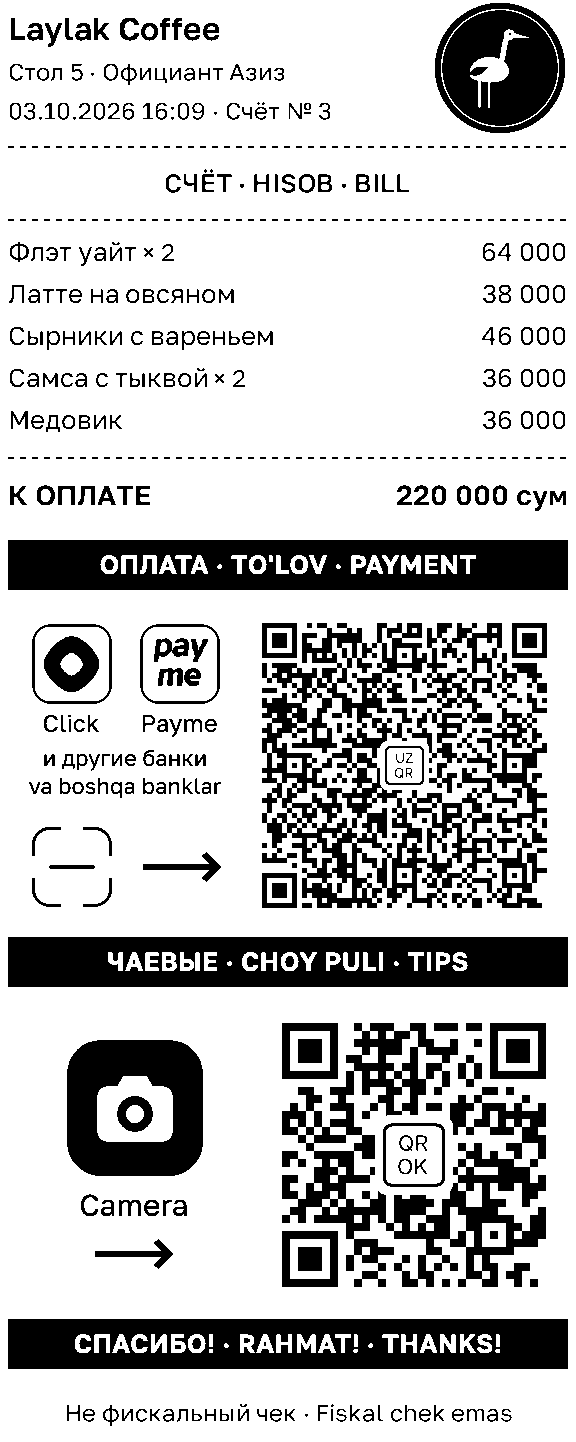
The pre-bill is drawn as a picture, so the printer must print graphics — any 80 mm ESC/POS printer does. If a register cannot draw the picture, the same pre-bill prints as text, with the codes drawn by the printer itself.
While printing, the register tells us about the pre-bill and takes the venue's current UzQR code and logo from our server. Without internet the pre-bill still prints — with what the register kept last time — and is held up by no more than a second and a half.
The codes print only while there is something left to pay on the bill.
The register picks up a new UzQR code, logo or plan by itself; the template file does not need replacing.
Everything is done in iikoOffice. We send the file qrok-iiko-prebill-<number>.cshtml — the whole pre-bill. For a venue that wants to keep its own pre-bill there is qrok-iiko-prebill-<number>-pieces.txt: only our block with the codes, in three pieces; how to paste them is written at the top of the file.
To roll back: tick Main on the previous pre-bill template.
For tips to go to a particular waiter, each waiter needs their own employee code in iikoOffice — the «Code» field on the employee card. It is usually filled in already. If the code is used for something else, add a hash and a number to the employee's name: «Aziza Karimova #104» — the number after the hash wins over the code and does not print on our pre-bill. With neither, the tips code opens the venue's page.
A waiter appears in the manager's cabinet after the first pre-bill with their code. The cabinet opens in the bot: Menu → «Manage». There each waiter's «⋯» menu has «Invite» — a link through which the waiter enters @qrokuzbot and adds a card number or a Click link. From then on, tips on their code go to them.
Want the waiters listed right away, with names? Send us their codes and names.
QR✓OK is in a pilot now: everything is free for venues, and no invoices are issued. On top of that, each point pays nothing for the month in which its first pre-bill is printed and for the whole of the next month. We give the venue at least 30 days' notice before the paid period starts. Current plans are on the Pricing page, terms in the Public Offer.