Your Click link for tips: where to find it and how to send it to the bot
With your personal Click link a guest tips you in one tap: Click opens the transfer straight to you. It takes a minute, and you do it once.
Why the Click link matters
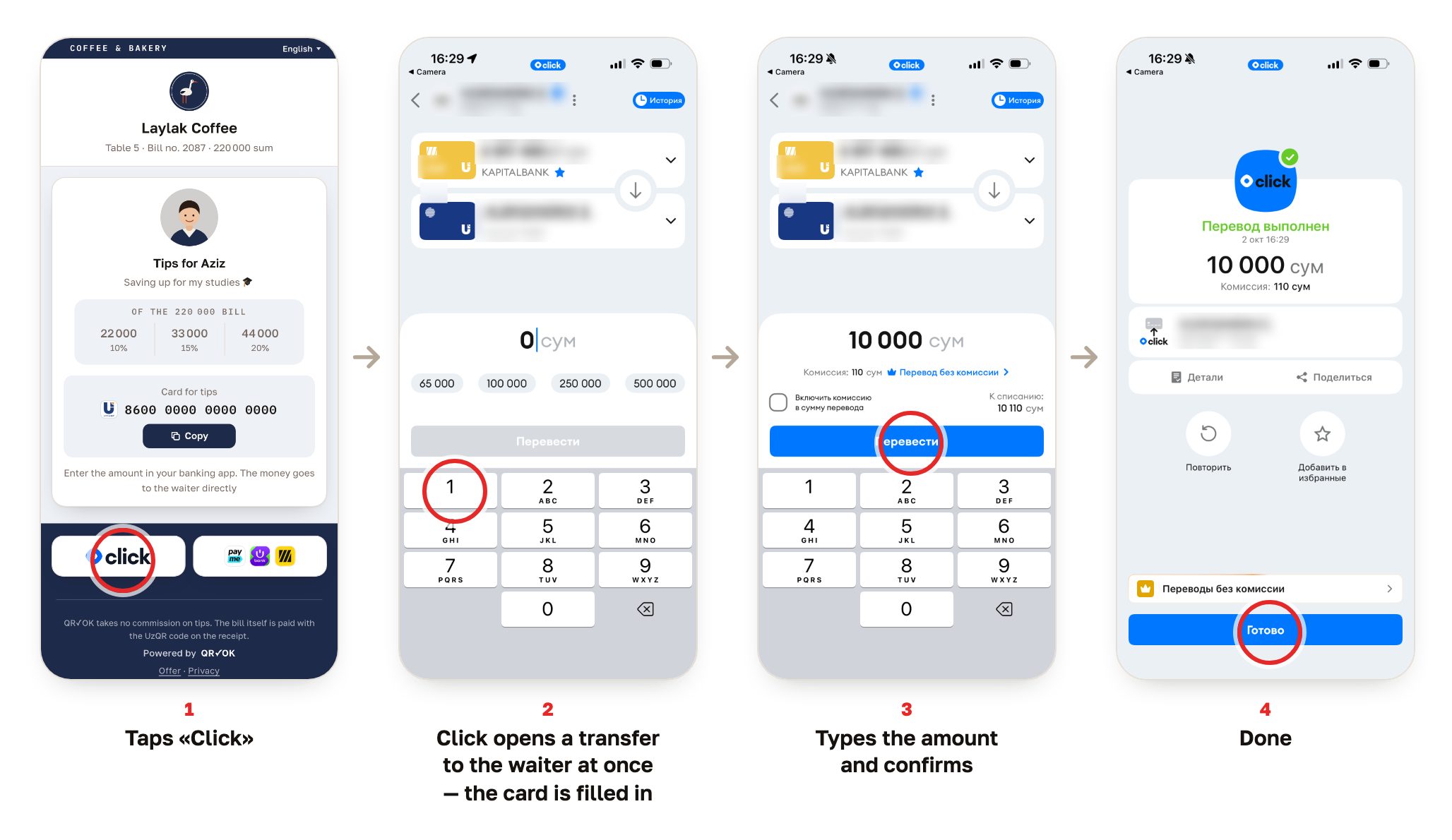
With the link, the guest's tips page gets a separate large Click button. One tap and Click opens the transfer straight to you: no card number to copy.
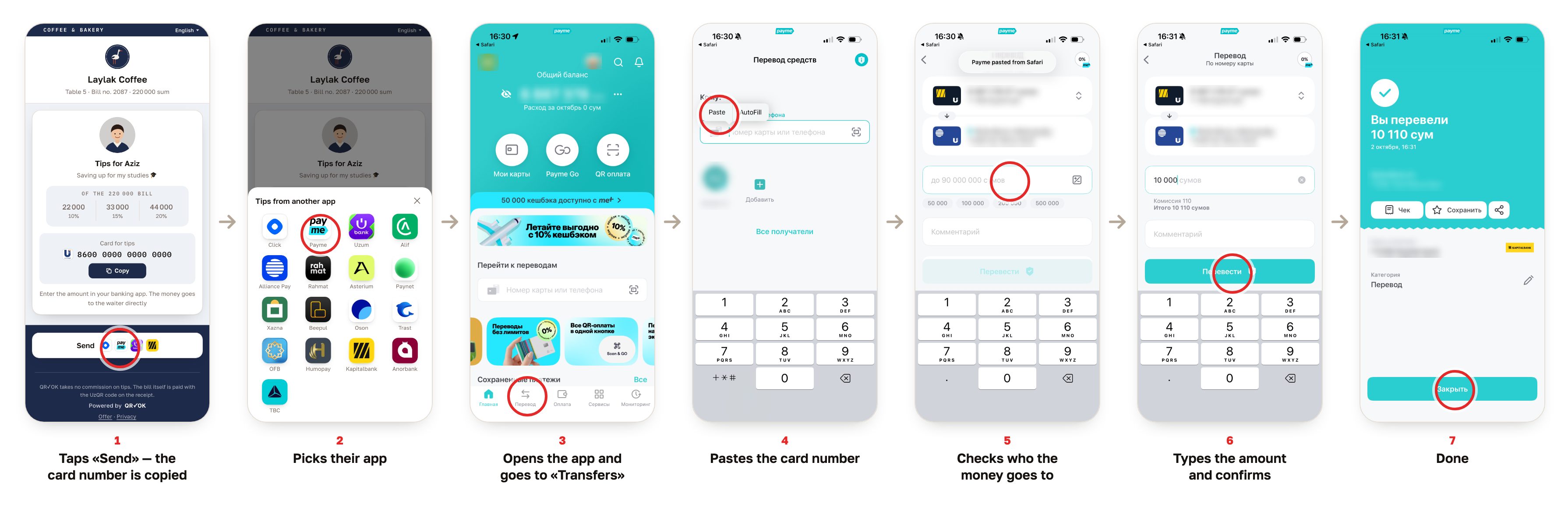
Without it, the guest has to copy the card number, pick an app, open a transfer there and paste the number. At every step some guests put the tip off for later, especially in a hurry.
With the link: tap Click, type the amount — 4 stepsWithout it: copy the number, find a transfer, paste — 7 steps
The same path in one picture — tap to enlarge:
You send the link to the bot once; the steps are below.
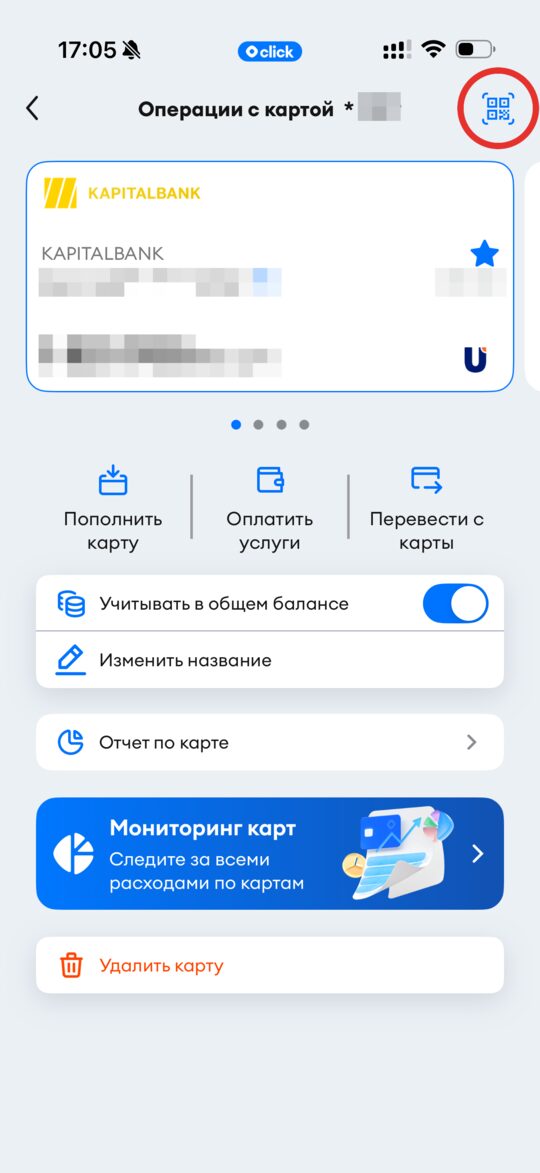
Step 1. Open your card in Click
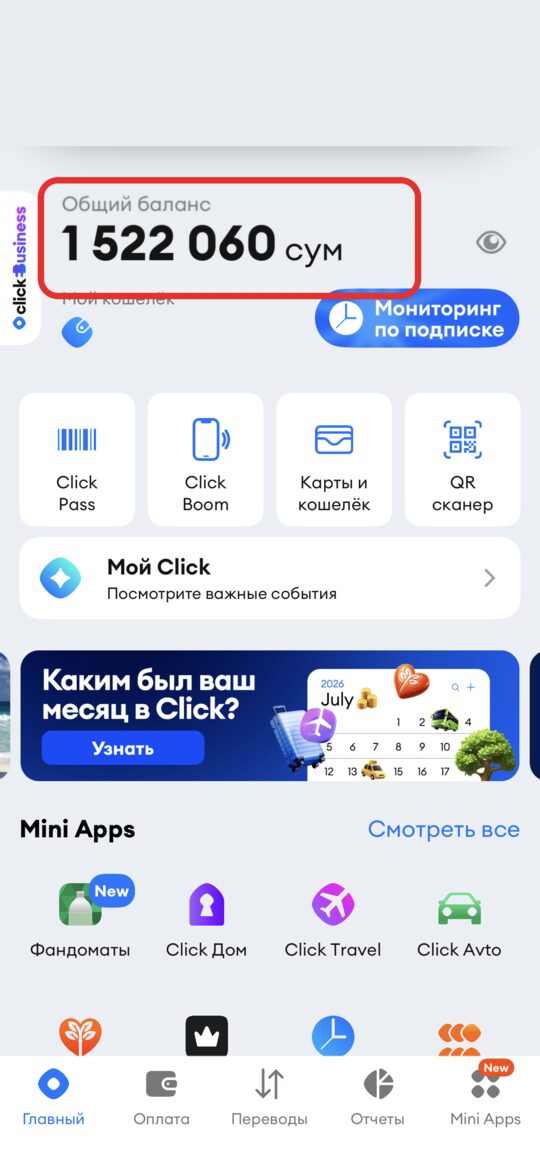
Tap your balance on the Click home screen.
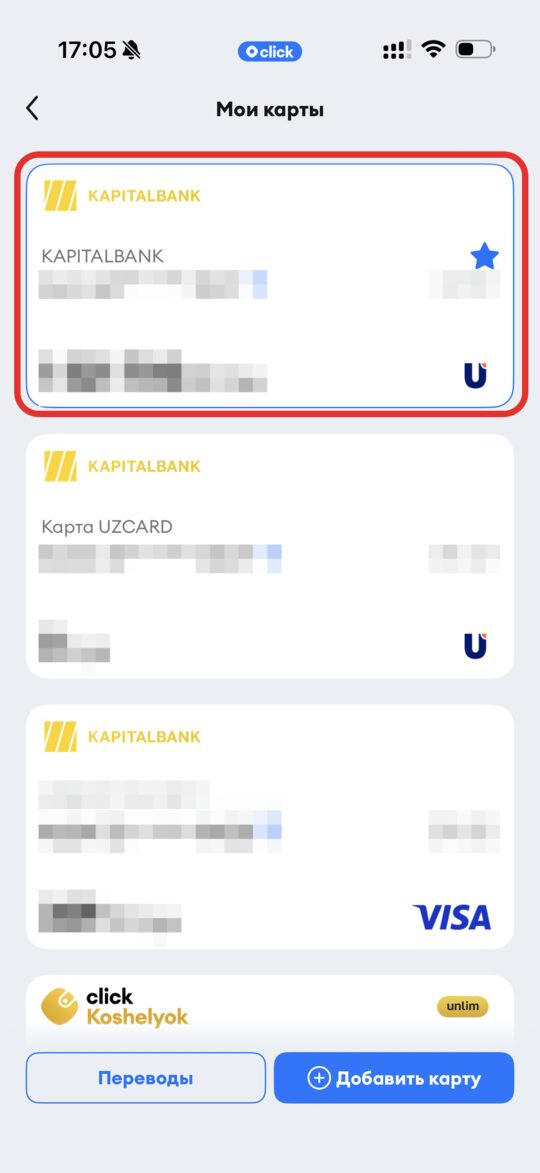
Pick the card you want tips on. Uzcard or Humo is best.
Tap the QR icon at the top right of the card screen.
1. Tap the balance2. Pick the card3. The QR icon, top right
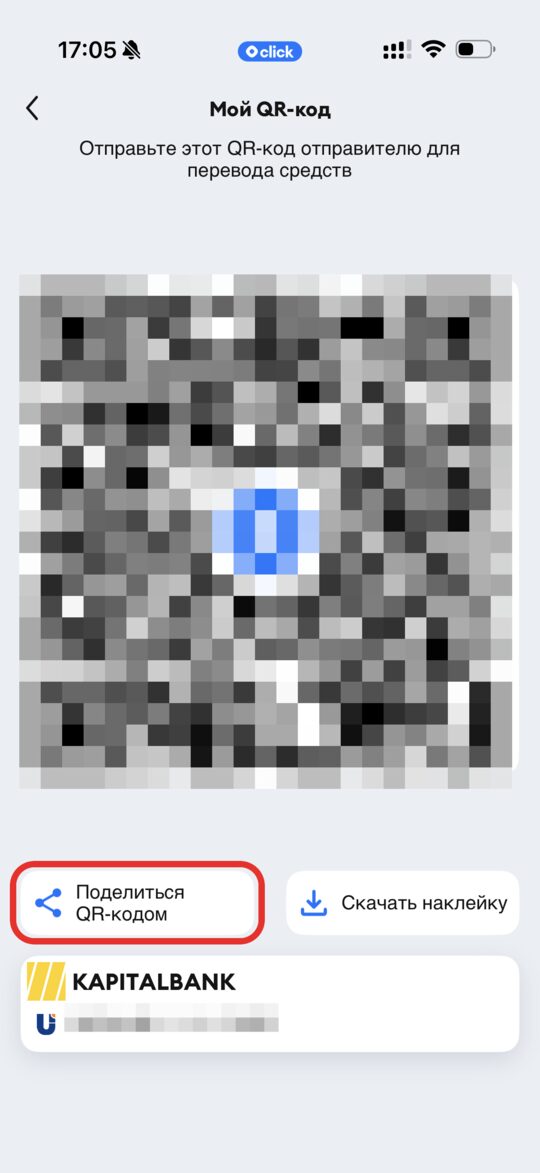
Step 2. Send the link to the bot
Tap «Share QR code».
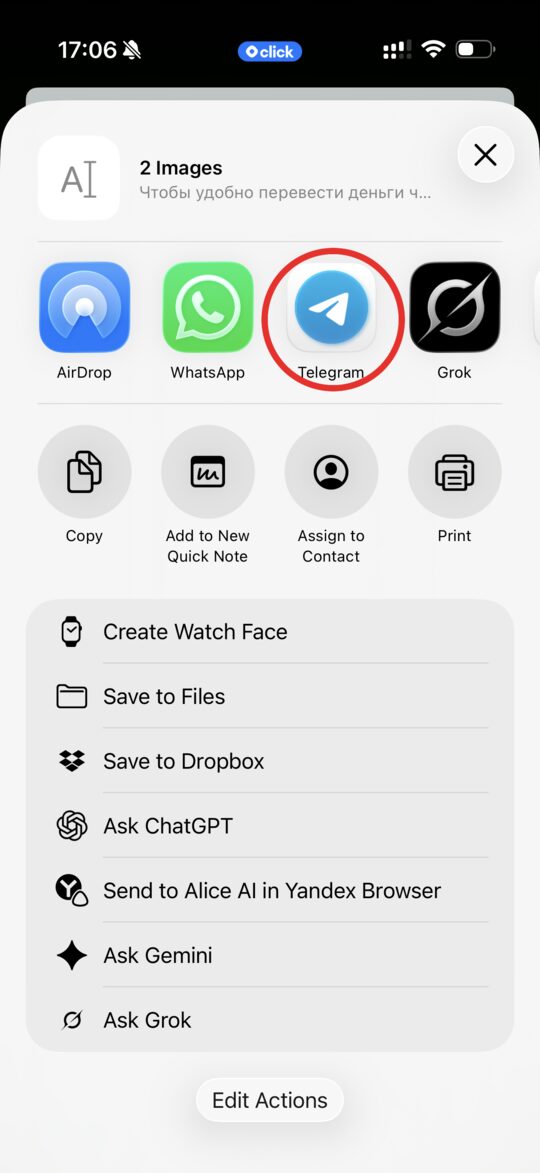
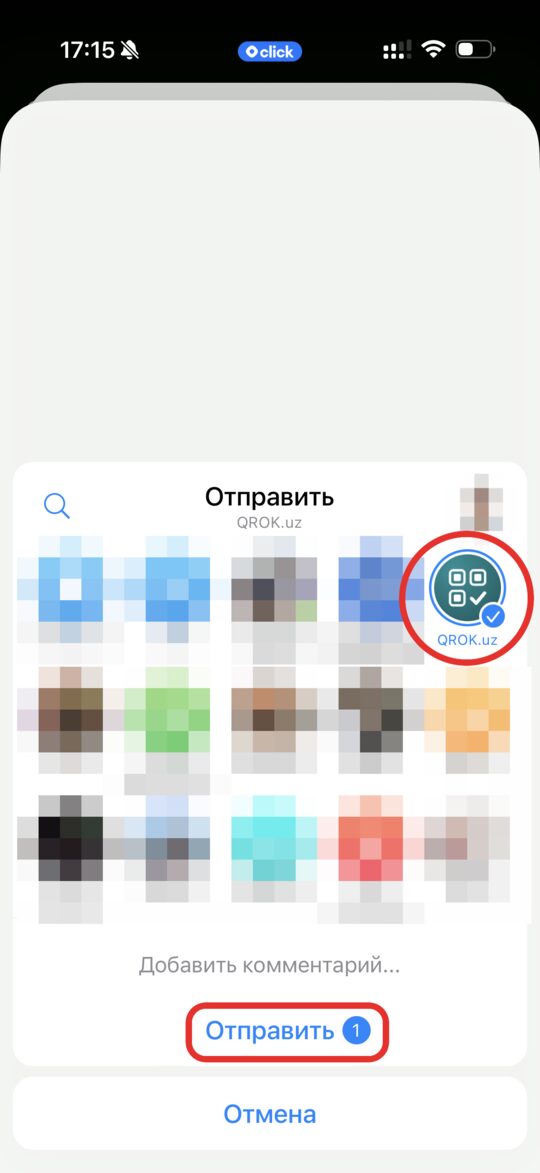
Pick Telegram, then the chat with @qrokuzbot.
Send. The bot recognises the link by itself — no command needed — and replies that it is saved.
4. «Share QR code»5. Telegram6. QROK.uz → Send
Personal details on the screenshots are hidden.
Click may send a picture of the QR code and a line of text along with the link — that is fine, the bot takes only the link.
If it did not work
The bot says the link is wrong
It needs a link like https://my.click.uz/clickp2p/…. If something else was sent, repeat step 2 — or copy the link under the QR code and paste it into the bot after the /click command.
I don't have Click
That's fine: a card number is enough. Guests tip from any banking app, and the number is copied for them. Uzcard or Humo is best — many apps do not transfer to Visa or Mastercard.
How do I change the link or the card?
Just send the bot the new link — it replaces the old one. Or open «My page» in the bot.
 QR✓OK
Connect your venueConnect
QR✓OK
Connect your venueConnect