For dealers and integrators › R-Keeper
QR✓OK for R-Keeper dealers
A guide for the r_keeper dealer or IT person who installs QR✓OK for a venue. Nothing is installed on the register: our block is added to the pre-bill layout in the manager station — about 15–20 minutes. The same installation for the venue is on the page Connecting on R-Keeper.
What you need
- The venue's own UzQR code — the plate issued by the venue's bank. If you don't have it yet, see how to get UzQR.
- r_keeper 7 and a thermal pre-bill printer. We checked on version 7.26.05.
- Access to the manager station — through the dealer who services your register, or the venue's IT person.
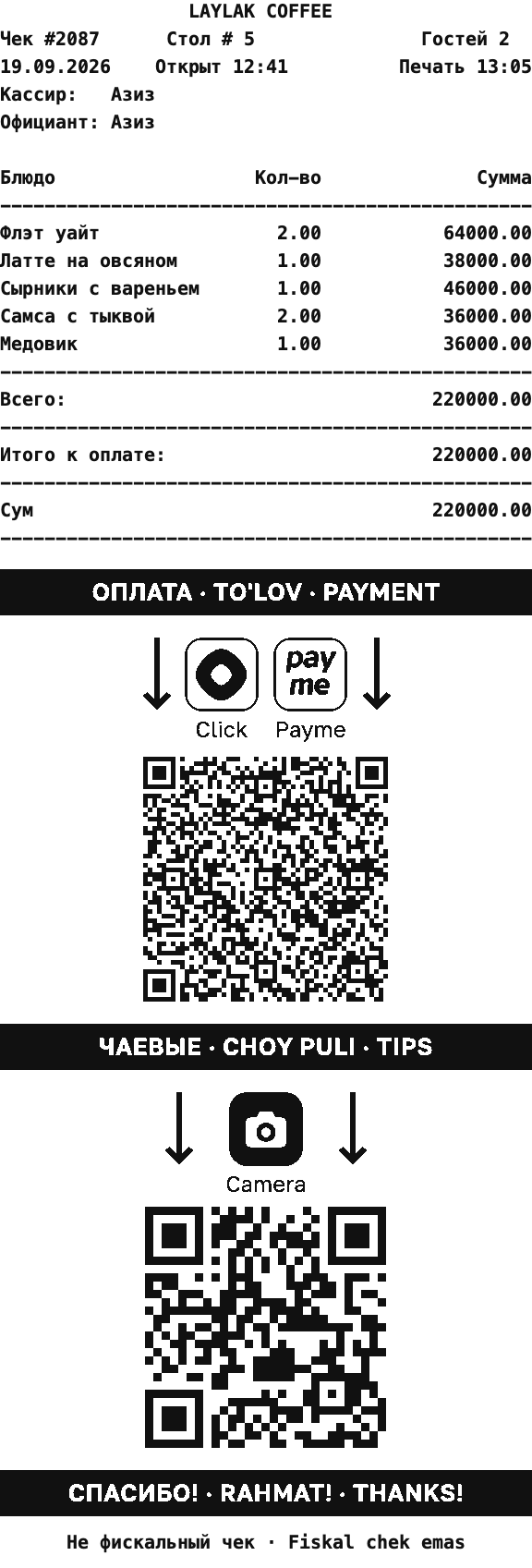
What the pre-bill looks like
The whole pre-bill stays yours; our block goes at the very bottom.
The bands and icons print as pictures on EPSON-compatible thermal printers; for other printers there is a text-only variant.
The codes print only while something is left to pay on the bill.
Step by step
- Leave a request on the connect page or in @qrokuzbot, POS — R-Keeper. Attach a photo of the UzQR plate.
- We prepare the layout file with your venue's code and send it to you or your dealer.
- The dealer or IT person installs the layout — following the instructions below.
- Test pre-bill. Open the top code in Click or Payme — the venue name and the amount must show. Open the bottom code with the phone camera.
- Waiters and payment notices — see the sections below.
While printing, the register tells us about the pre-bill and takes the current UzQR code and plan from our server: a new code from the bank reaches the register by itself, the layout stays. Without internet the pre-bill prints as usual — with what the register kept last time.
For the dealer or IT
Everything is done in the r_keeper manager station. We send two files: qrok-rkeeper-prebill-<number>.mak — a ready layout based on r_keeper's stock pre-bill, and qrok-rkeeper-prebill-<number>.pas — the script for a venue with its own pre-bill design.
- Find the pre-bill layout that prints now: Настройки → Печать → Использование схем печати — the restaurant's print scheme, then Настройки → Печать → Схемы печати → that scheme → document «Пречек».
- Copy that layout: Настройки → Печать → Документы и макеты → Расчёт с покупателем → Пречек, «Копировать» and «Вставить». Set the copy's status to «Активный».
- Add our block to the copy:
- r_keeper's stock pre-bill — open the copy's designer, press Ctrl+O, pick our .mak file, OK and save;
- your own pre-bill design — add a band at the bottom of the layout with a full-width memo named MemoQrok, paste our .pas script into its Script property, OK and save.
- Put the copy into the print scheme instead of the old pre-bill layout, with the same printer class.
- Set up the pre-bill printer's driver: Сервис → Станции и устройства → cash station → «Устройства» → the printer driver (EPSON). Set Mode QR-code = Hard QRcode and QRCodeXYSize = 280. This way the printer draws the QR itself — even and the right size. In the default mode («Bitmap») the code's dots come out uneven, and phones read it poorly.
- The register must reach the internet at rkeeper.qrok.uz (HTTPS). Next to the cash program (the bin\win folder) the layout keeps a small file qrok-<number>.txt — leave it be.
- Restart the cash server (MidServ) and the cash stations. A register picks up a new layout and driver settings only after a restart.
- Print a test pre-bill and check the codes as in step 4 above.
The waiter in the tips code is their «Код» in r_keeper; nothing to set up for that. If pre-bills are printed by a fiscal printer with a different driver, write to us and we will help with the settings.
Waiters
A waiter appears in the manager's cabinet after the first pre-bill with their code. The cabinet opens in the bot: Menu → «Manage». There each waiter's «⋯» menu has «Invite» — a link through which the waiter enters @qrokuzbot and adds a card number or a Click link. From then on, tips on their code go to them.
Want the waiters listed right away, with names? Send us their r_keeper codes and names.
Pricing for the venue
QR✓OK is in a pilot now: everything is free for venues, and no invoices are issued. On top of that, each point pays nothing for the month in which its first pre-bill is printed and for the whole of the next month. We give the venue at least 30 days' notice before the paid period starts. Current plans are on the Pricing page, terms in the Public Offer.
 QR✓OK
Connect your venueConnect
QR✓OK
Connect your venueConnect