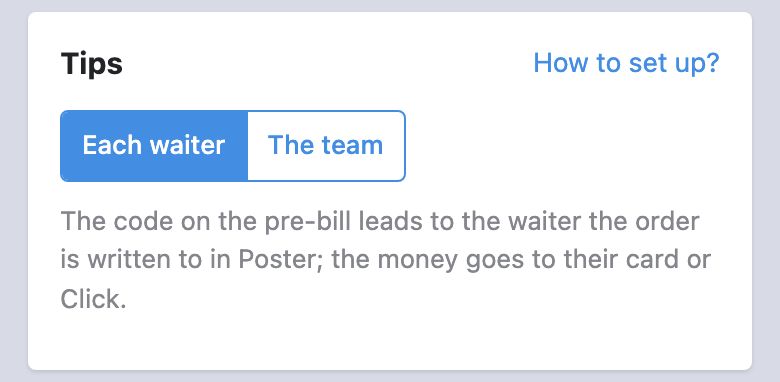
QR✓OK prints a tips code on every pre-bill. Where the money goes is the manager's choice, in the «Tips» block of their page: each waiter — the one the order is written to — or the whole team. Below is how they differ and what to set up in Poster for each. Poster's menu names are given in Russian, as on the screenshots, with a translation.
The code opens the page of the waiter the order is written to in Poster: their name, photo, goal. The money goes straight to their card or Click.
Fits when every waiter logs in at the register with their own PIN.
The team
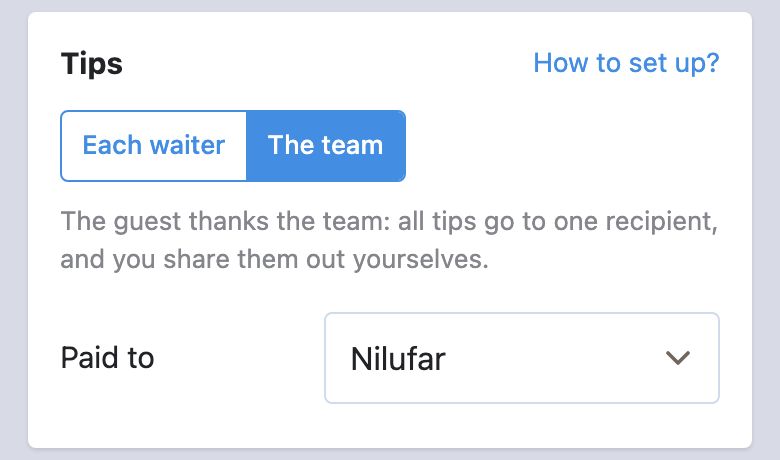
Every pre-bill carries one team code. All tips go to one recipient chosen by the manager, and the team shares them out itself.
Fits when the whole shift works under one shared login — as in coffee shops.
The mode can be switched at any time on the manager's page: «Tips» → «Each waiter» or «The team». The next pre-bill already follows the new mode.
Each waiter — the code leads to the order’s waiter.The team — and the recipient in «Paid to».
Tips to each waiter: setting up Poster
Every waiter has their own card and PIN code in Poster: an order is written to whoever is logged in at the register — that is how we know whose tips they are.
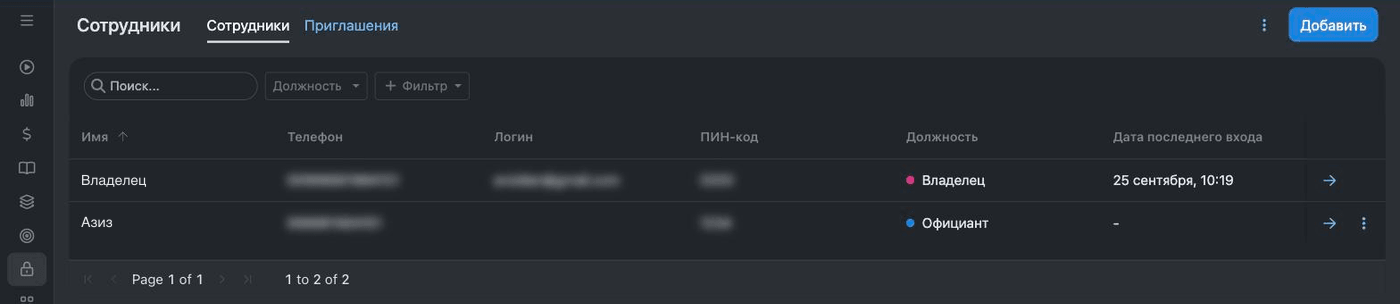
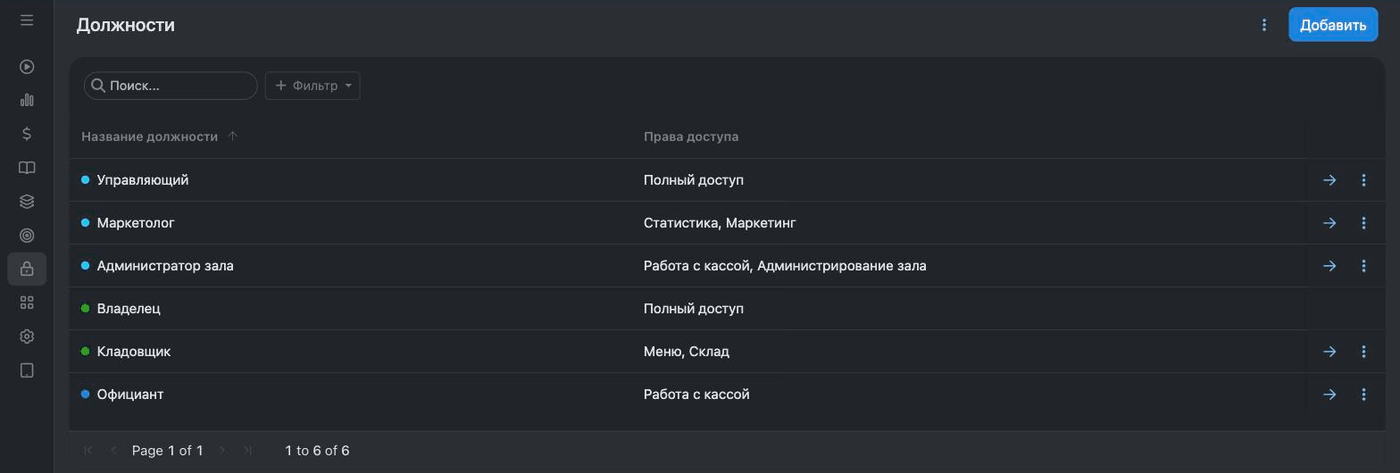
Add every waiter as a separate employee. In the Poster back office: Доступ → Сотрудники → «Добавить» (Access → Employees → «Add»).The employee list. The «Добавить» (Add) button is at the top right.
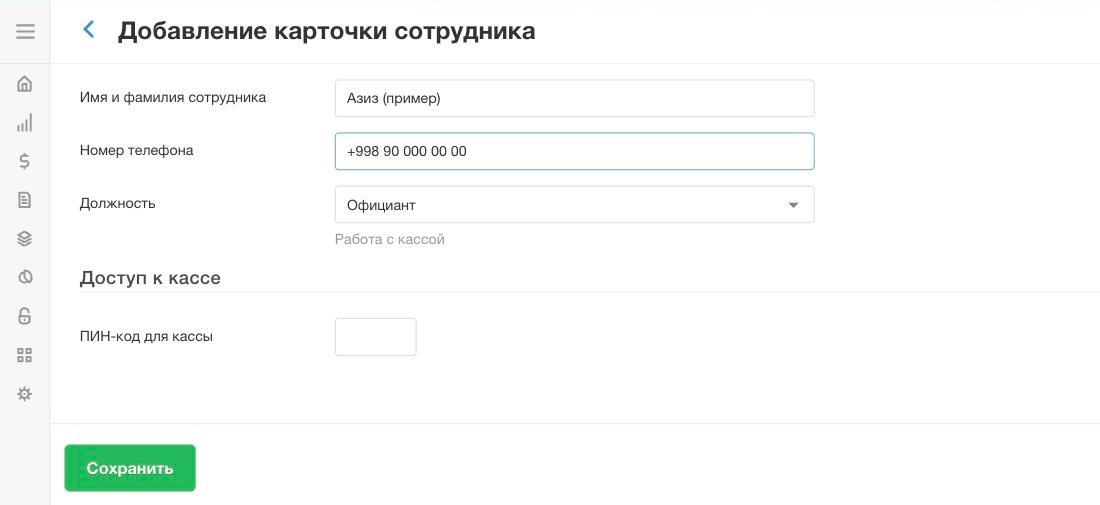
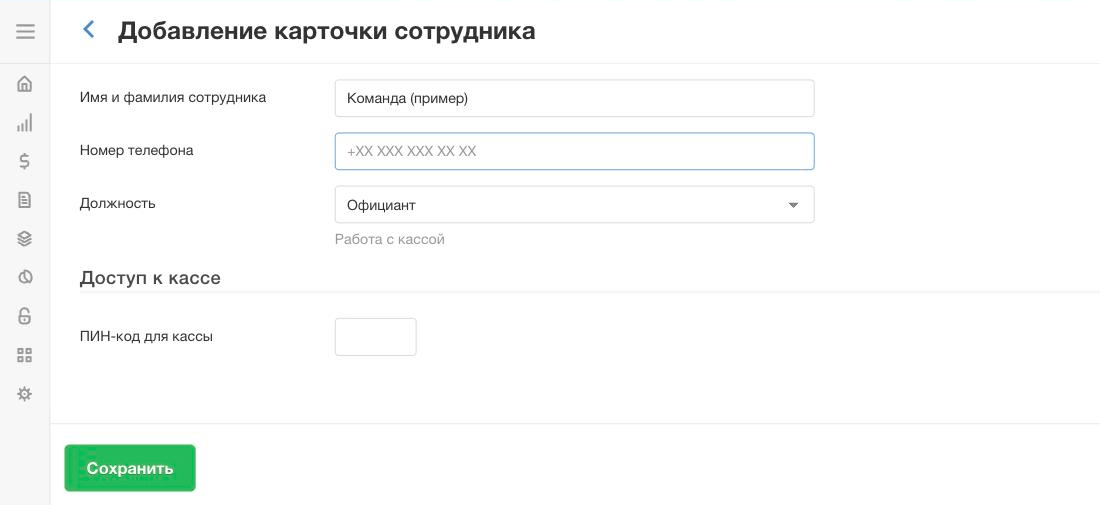
Fill in the card. «Имя и фамилия» (full name) — guests will see this name. «Номер телефона» (phone number) is required: our bot recognises the waiter by it, even though Poster lets you leave it empty. «Должность» (position) — «Официант» (waiter): we give tips only to employees in this position, not to cashiers or managers. In the «Доступ к кассе» (register access) block — their own 4-digit «ПИН-код для кассы» (register PIN), different for everyone.A new waiter's card (example).
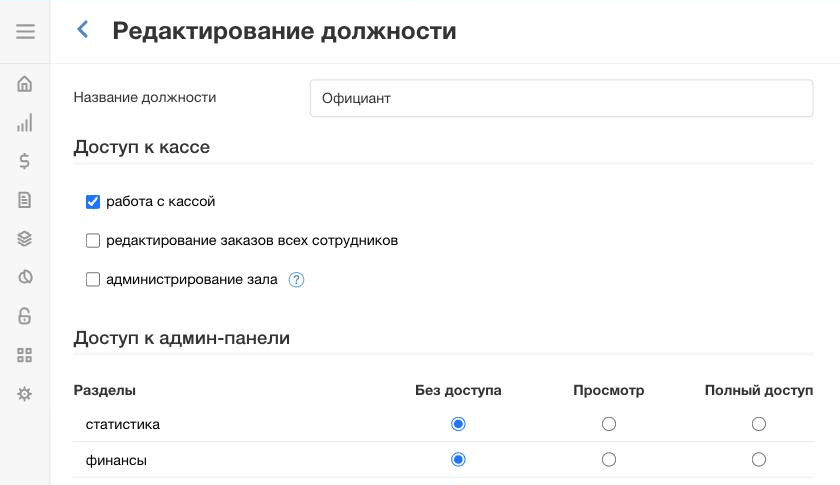
Check the position's rights.Доступ → Должности → «Официант» (Access → Positions → Waiter): «работа с кассой» (working at the register) must be ticked.The positions: «Официант» has «Работа с кассой».Rights of the «Официант» position.
Connect the waiters to QR✓OK. A new employee appears with us by themselves as soon as they print their first pre-bill. The «Refresh» under «People» button on the manager's page pulls the list at once (in a chain of several branches — only those who have already worked at this branch's register). There, press «⋯» → «Invite» and send the link to the waiter: they open the bot, add a card or Click — and the code on their pre-bills starts working.
The order belongs to whoever serves the table
The tips go to the waiter the order is written to, so what matters is that every order belongs to the person who serves it.
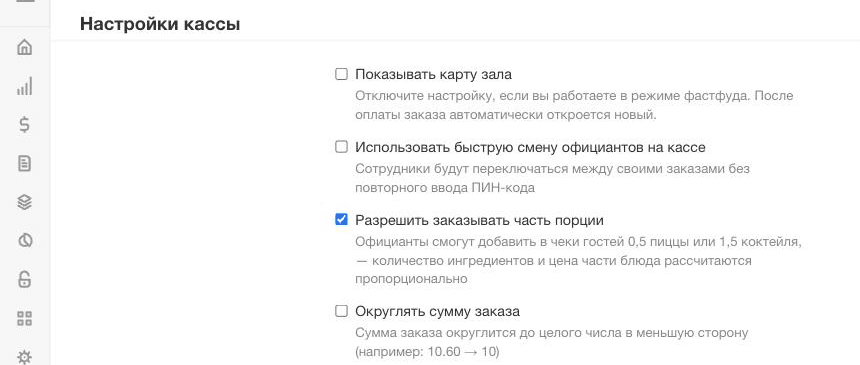
Turn off quick waiter switching:Настройки → Общие → «Настройки кассы» (Settings → General → Register settings) → untick «Использовать быструю смену официантов на кассе» (use quick waiter switching). With it, waiters switch without a PIN, and an order is easily opened under someone else's name — then the tips go to the wrong person.
Everyone logs in at the register with their own PIN and opens orders under their own name.
A table moved to another waiter — in the open order tap «•••» at the bottom left → «Изменить официанта» (change waiter) (Poster help), then print the pre-bill.
Give «Администрирование зала» (closing and editing every waiter's orders) to senior staff only.
Anyone can print the pre-bill — a cashier, a manager or another waiter: the tips still go to the order's waiter. After printing, the register shows whose tips these are, e.g. «чаевые: Азиз».
This box must be unticked.
Tips to the team: setup
Here it does not matter whose login the order was opened under, so nothing needs to change in Poster.
Choose the recipient. Manager's page → «Tips» → «The team» → «Paid to». Only people with a card or Click are listed: if the right person is missing, they should add one in the bot first.
If you like — one login for the shift.Доступ → Сотрудники → «Добавить»: a name like «Команда Шевченко» (Team Shevchenko), the «Официант» position, its own register PIN; the phone can be left empty. The whole shift knows this PIN.A shared shift login (example).
Share the tips yourselves. The recipient sees every transfer; how to split — by hours, equally or otherwise — is up to the team. We do not touch the money and take no fee.
Questions
What if a waiter has no card?
In the «Each waiter» mode no tips code is printed on their pre-bill: a guest must not land on a page with nowhere to send money. Invite the waiter from the manager's page — the bot will ask them to add a card.
A cashier printed the pre-bill — whose tips?
The waiter the order is written to, whoever prints the pre-bill: a cashier, a manager or another waiter. If the table moved to a colleague, change the waiter in the order first.
Does Poster's standard pre-bill print the code too?
No. Poster does not let apps hook into its own «Пречек» button, so the code is printed only by our «Пречек с UzQR» button in the order.
A waiter left — what happens to their page?
When the employee is removed from Poster, we switch their page off at the next check, and after 30 days erase their phone, card and photo.
 QR✓OK
Connect your venueConnect
QR✓OK
Connect your venueConnect