At a Poster venue a waiter can run an order straight from their own phone — in the «Orders» app by QR✓OK. Open an order on a table, add dishes, send the kitchen ticket and print the pre-bill without walking to the register. Every change goes straight into the order in Poster, and the venue's register prints the kitchen ticket and the pre-bill.
What it gives the venue
The waiter takes the order at the table and hardly walks to the register or the kitchen. At peak hours the same waiters serve more tables, and where three were needed, two cope.
The order is in the kitchen at onceThe ticket goes from the table, not after a walk to the register, and there is no queue of waiters at it.
«Ready» on the phoneThe kitchen marks a dish ready and the waiter gets a notification. No checking the pass, hot food does not wait.
Tables free up soonerThe pre-bill prints from the phone, and the guest pays by the UzQR on it — no terminal, no change.
Fewer mistakesThe order is built from the Poster menu with the required modifiers and a note for the kitchen, not on paper.
Fewer lost ordersThe stop list is on the phone: the guest hears at once what is off and picks something else while the waiter is there, not after a trip to the register.
Order in the ordersEvery order has a history: who added or removed what. What went to the kitchen from a phone cannot be taken back from it.
No tablets, no extra registersIt all runs on the waiter's phone, as an app on its home screen.
New staff up to speed soonerMenu search, the popular dishes on top, the modifiers asked for by the app — no menu to learn by heart.
More tipsA tips code on every pre-bill: a guest without cash can tip too. Waiters earn more and leave less often.
What the venue needs
Poster. Orders, tables and the menu come from the venue's Poster, and every change made on the phone goes there too.
Our QR✓OK app on a register with a printer. Poster cannot print on a command from the internet, so the kitchen ticket and the pre-bill are printed by a register of the venue that has our app open and a printer connected. One such register per spot is enough.
The «Poster+» plan. «Waiter on a smartphone» is the «Poster+» plan: 100,000 UZS a month per point and 80,000 UZS per waiter who takes orders on the phone. We are in a pilot now: everything is free. On top of that, each point pays nothing for the month in which its first pre-bill is printed and for the whole of the next month. We give at least 30 days' notice before billing starts. Pricing
We switch it on. «Waiter on a smartphone» is switched on for the venue, and each waiter can be allowed or not. «Pre-bill» from the phone and working on orders (dishes, «Kitchen ticket») are allowed separately. The manager tells us in the bot @qrokuzbot who should get what.
Opening it
The easy way is the manager's QR code. The waiter points the phone camera at it, and «Orders» opens in the phone's browser already signed in: no password, no Telegram.
The manager
Open the manager's cabinet in the bot @qrokuzbot and find the waiter in the list.
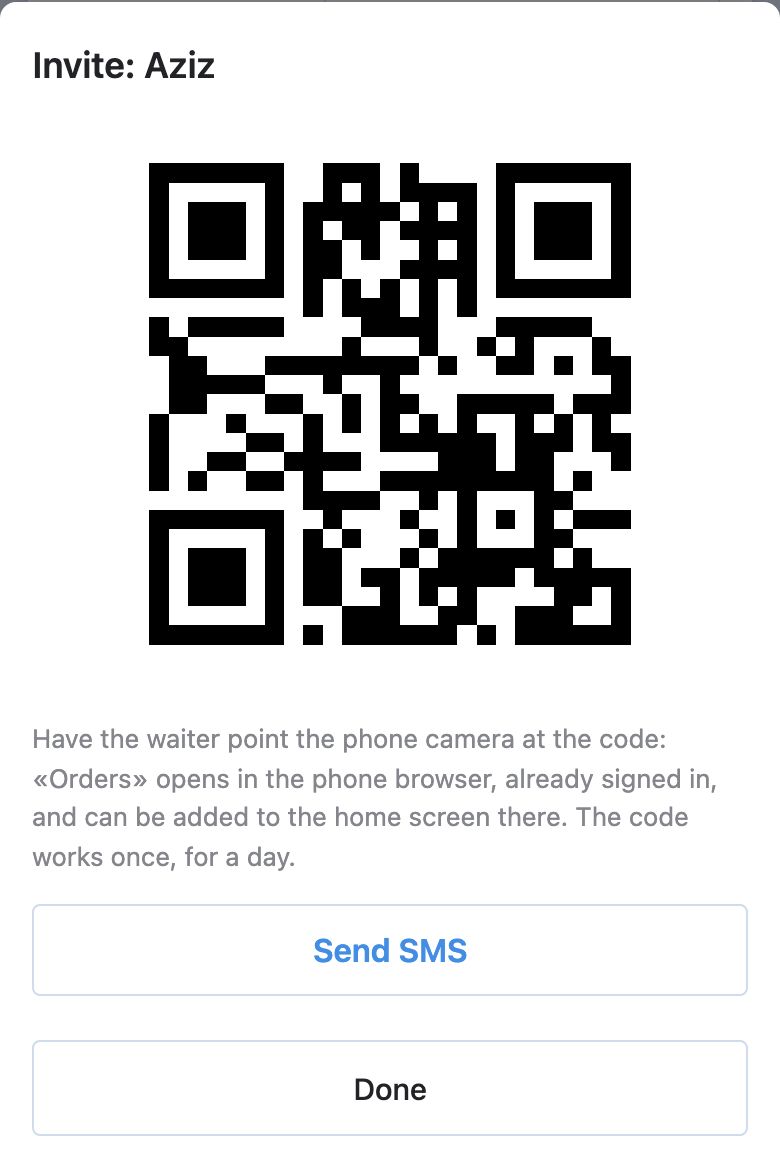
Tap «⋯» → «Invite». The QR code for this waiter opens at once.
Show the waiter the QR code. The code works once and is valid for a day. If the waiter is not around, tap «Send SMS» under the code: the same link goes to them by SMS (9:00 to 21:00). No number on file — type it in the small window that opens; it is saved for the waiter.
The waiter
Point the phone camera at the QR code and open the link. «Orders» opens in Safari or Chrome, already signed in. The name and icon are your venue's, e.g. «Tim's Coffee Orders».
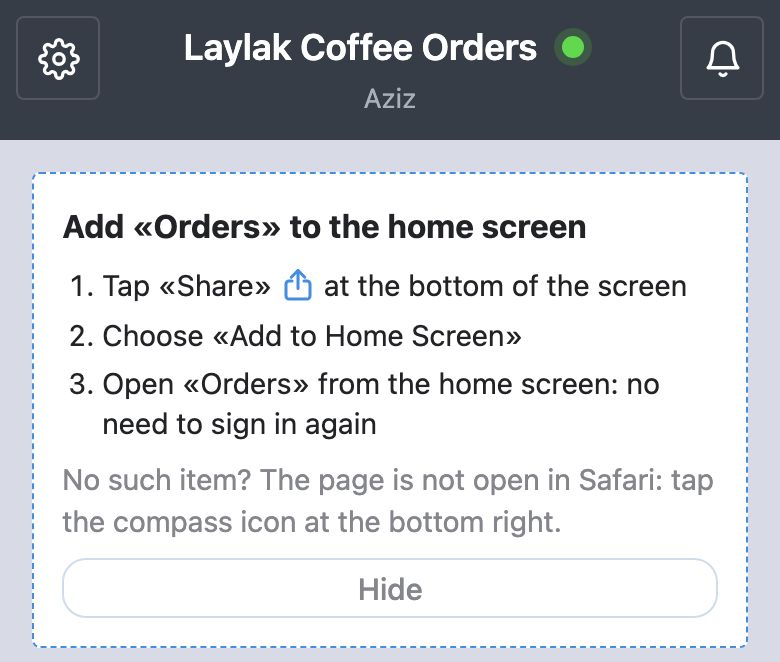
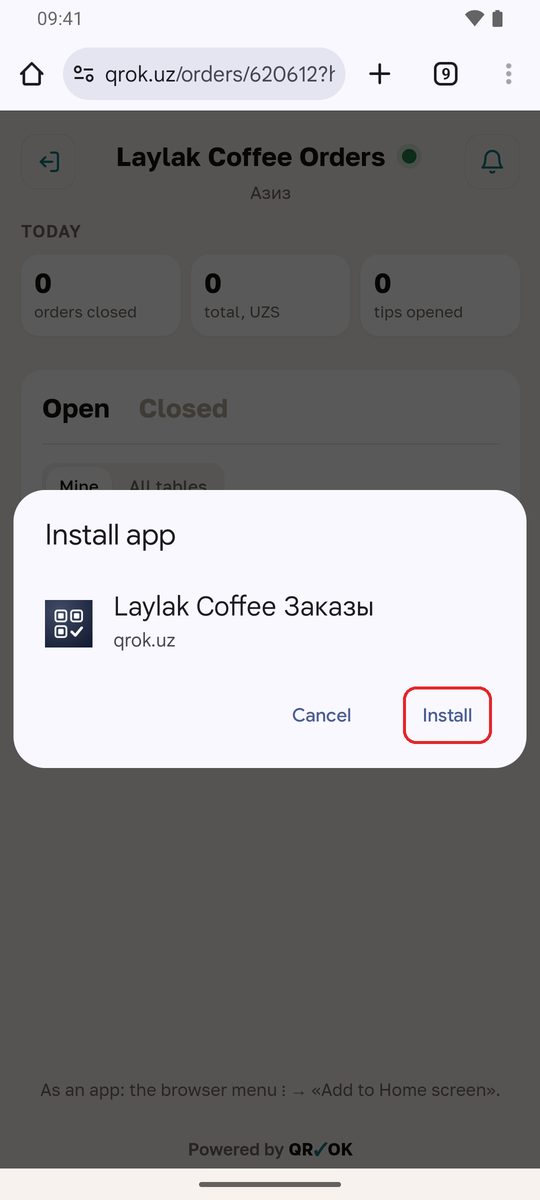
Add «Orders» to the home screen. A card on top says «Add «Orders» to the home screen»: on an iPhone it is «Share» → «Add to Home Screen», on Android an «Install» button. Details below.
From then on, open «Orders» from the icon. The sign-in lasts as long as you use «Orders»; it ends only if you do not open them for half a year. A new phone, signing out in «Settings», or the manager deleting your sessions — ask the manager for a new QR code.
The manager: «⋯» → «Invite».The waiter: «Orders» opened, already signed in.
Did the link open inside Telegram, Instagram or another app? «Orders» shows «Open in the phone browser» with an «Open in Safari» or «Open in Chrome» button: the page opens in the phone's browser and the sign-in goes with it. An app's built-in browser does not keep the sign-in, and «Orders» cannot go on the home screen from there.
Through Telegram. «Orders» also opens in the bot @qrokuzbot — the «Orders» button left of the message field. At the bottom of «Orders» in Telegram there is «Open in the browser — and on the home screen»: that too opens «Orders» in the phone's browser, signed in. You can also sign in in the browser yourself: qrok.uz/orders → «Log in with Telegram», with the account you use in the bot.
If you work at several venues, a venue picker sits on top, and in the browser each venue has its own address (qrok.uz/orders/number), so each can go on the home screen separately. To sign out of «Orders» in the browser: the gear at the top left → «Sign out on this device».
Putting «Orders» on the phone's home screen
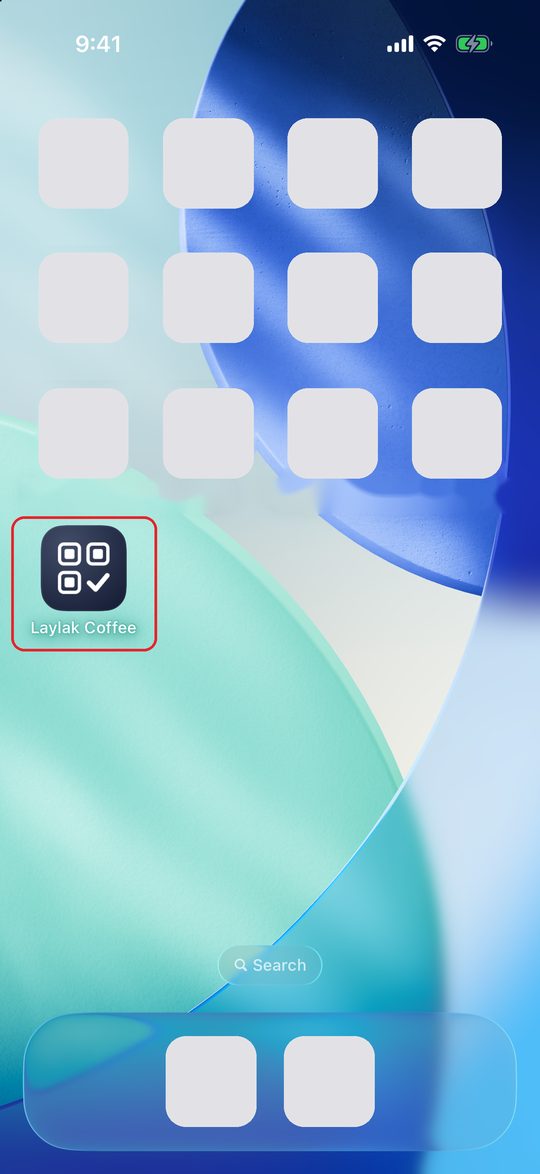
From the icon «Orders» opens straight away, like a separate app — no address bar and no Telegram. On the phone the icon carries the venue's name. While «Orders» is open in the browser, a card on top says «Add «Orders» to the home screen» with the steps for your phone; «Hide» takes it away on this phone.
iPhone — Safari
Open «Orders» in Safari — by the manager's QR code, with the «Open in the browser — and on the home screen» button at the bottom of «Orders» in the bot, or at qrok.uz/orders/number.
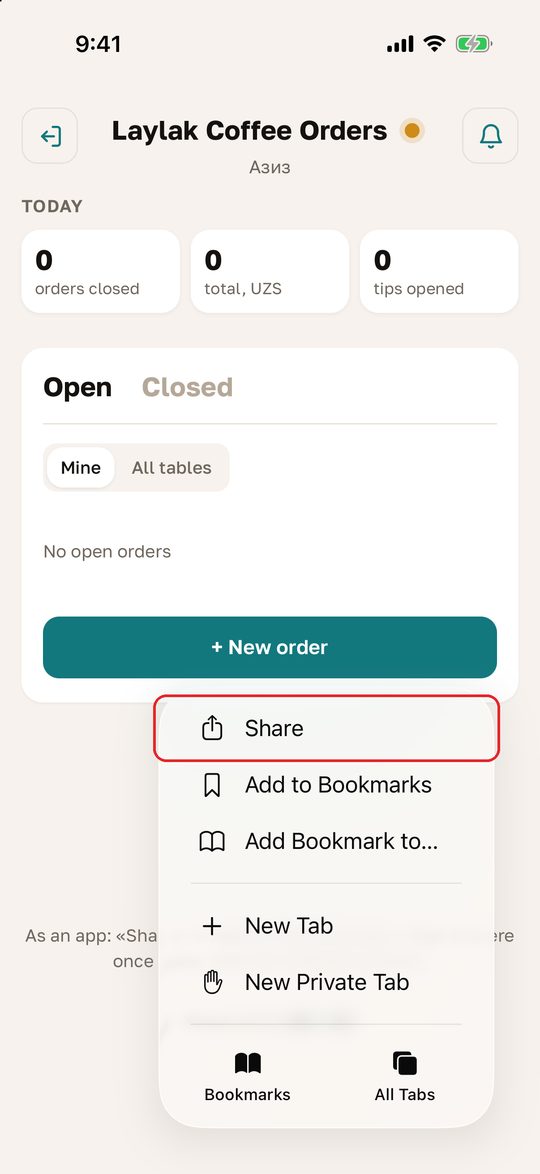
Tap «Share». In iOS 26 it is in the «⋯» menu at the bottom right; in earlier versions it is the square-with-an-arrow icon on the bottom bar.
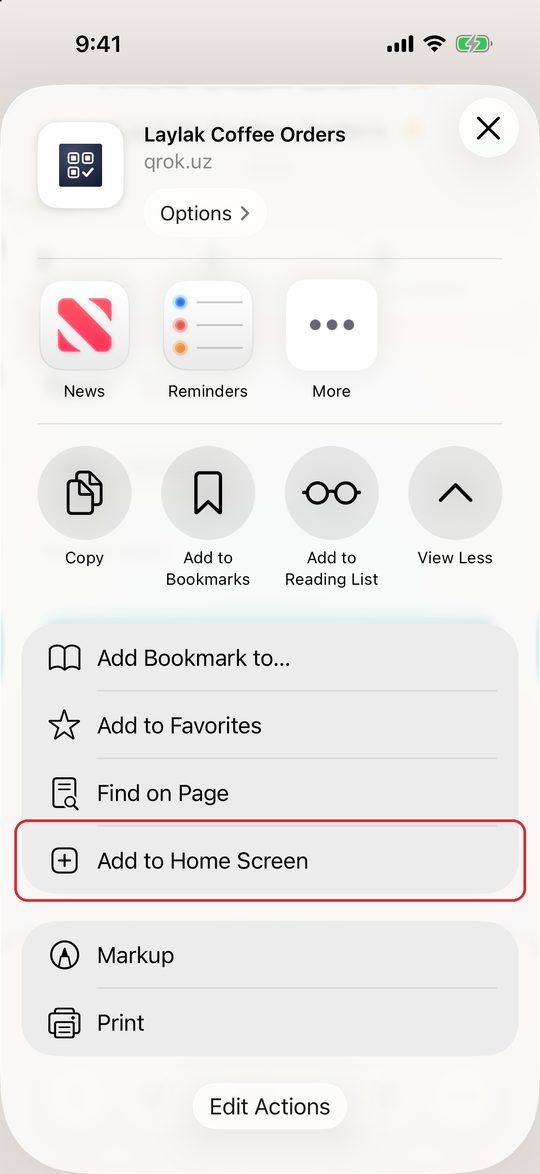
Choose «Add to Home Screen». If you don't see it, tap «View More» or scroll the list down. No such item at all means the page is not open in Safari: tap the compass icon at the bottom right.
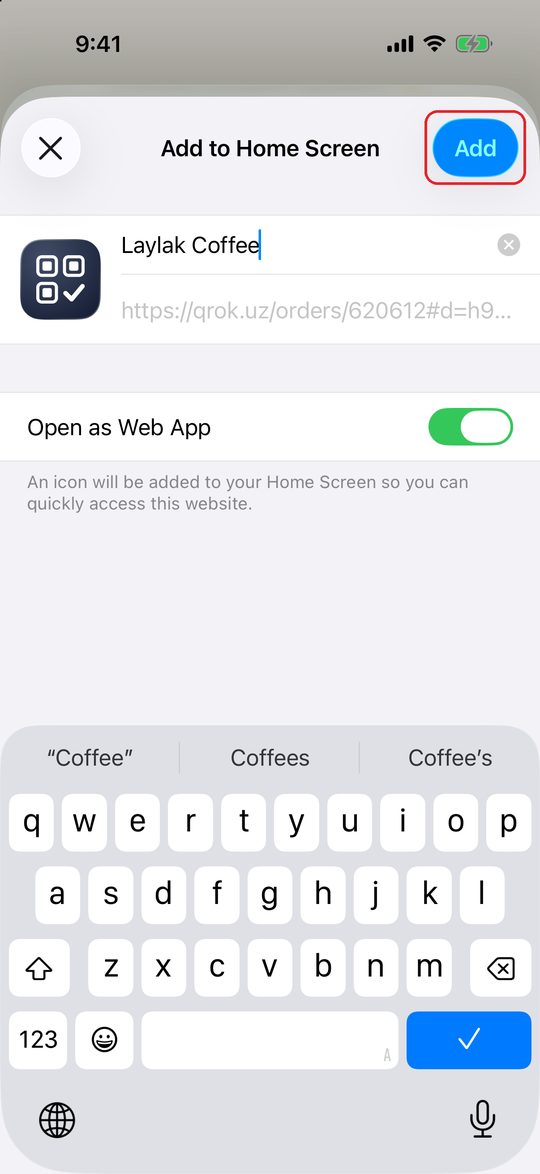
Tap «Add». Keep the name as it is and leave «Open as Web App» on.
1. «⋯» → «Share»2. «Add to Home Screen»3. «Add»4. The icon on the Home Screen
Android — Chrome
Open «Orders» in Chrome — by the manager's QR code, with the «Open in the browser — and on the home screen» button in the bot, or at qrok.uz/orders/number.
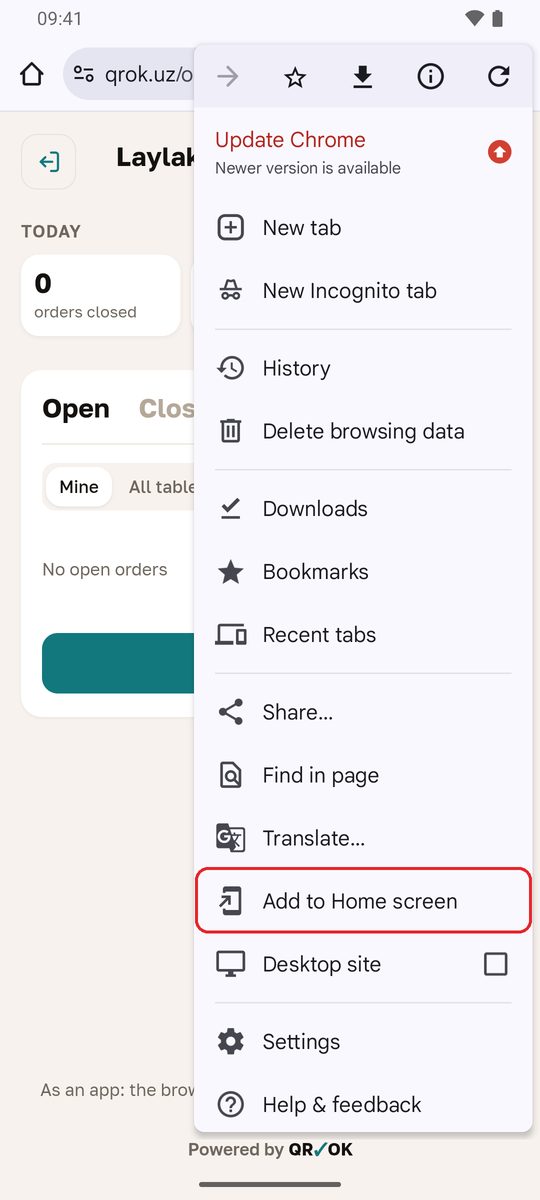
Tap «Install» in the card on top. If there is no button, tap «⋮» at the top right and choose «Add to Home screen». On some phones the item is called «Install app».
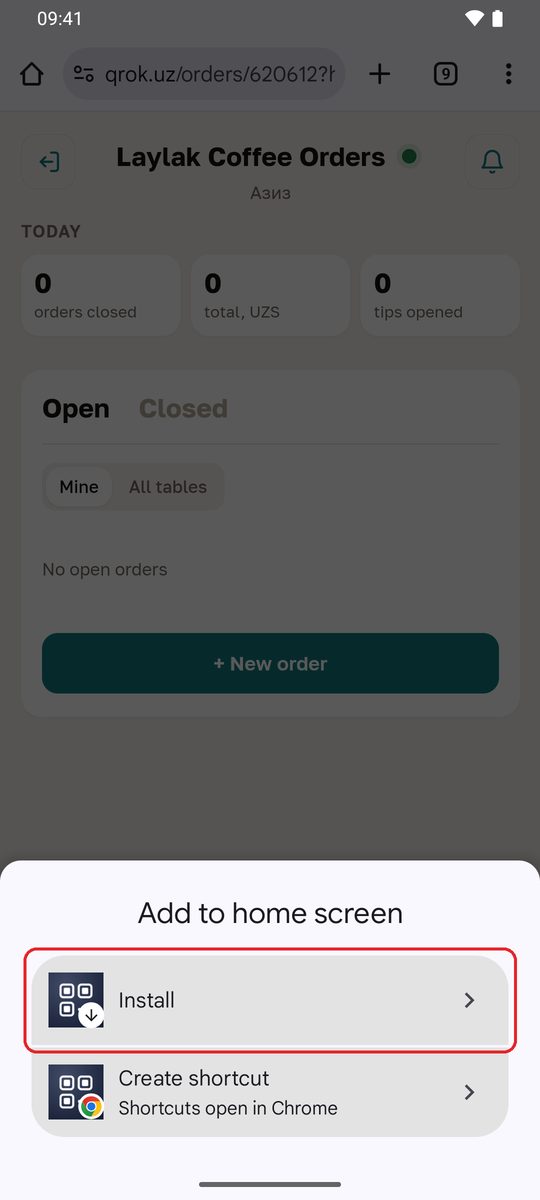
Choose «Install», not «Create shortcut», and tap «Install» once more. If the phone asks where to put the icon, tap «Add to home screen».
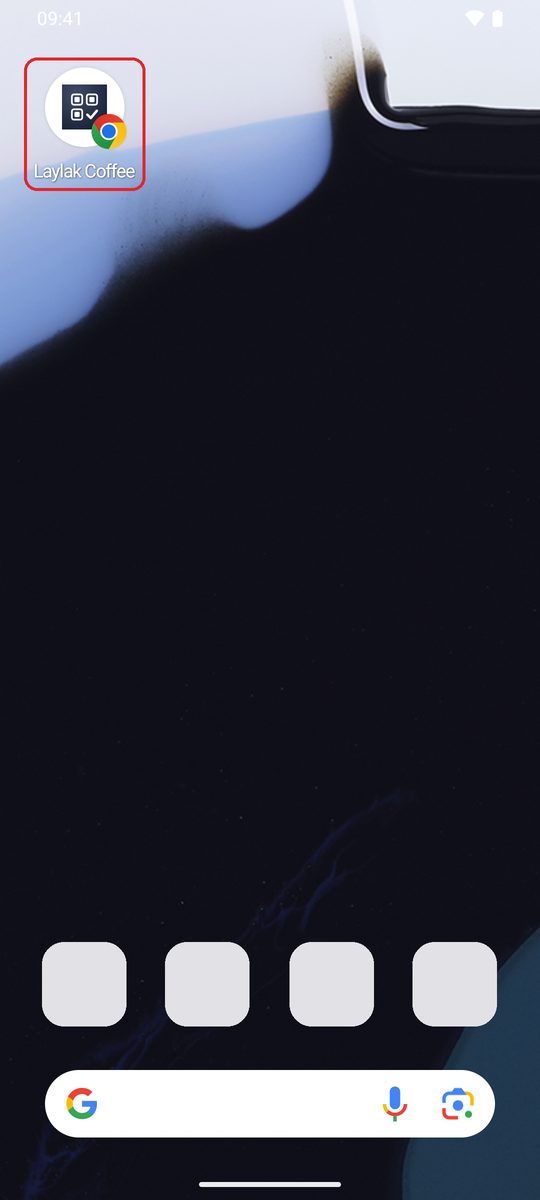
The icon appears on the home screen or in the app list.
1. «⋮» → «Add to Home screen»2. «Install»3. «Install» once more4. The icon on the home screen
No second sign-in, if you add «Orders» from a page where you are already signed in: the app opens from the icon signed in, within 30 minutes of opening the page. If a sign-in screen shows up anyway, ask the manager for a new QR code or log in with Telegram. On an iPhone notifications, such as «Ready» from the kitchen, come only to «Orders» installed on the Home Screen.
Start of the shift: log in at the register
«Orders» opens for the shift only once the waiter has logged in to Poster at a register with their own PIN today. The day starts at 05:00 Tashkent time: a login after midnight still counts for the evening shift, and the morning needs a new one.
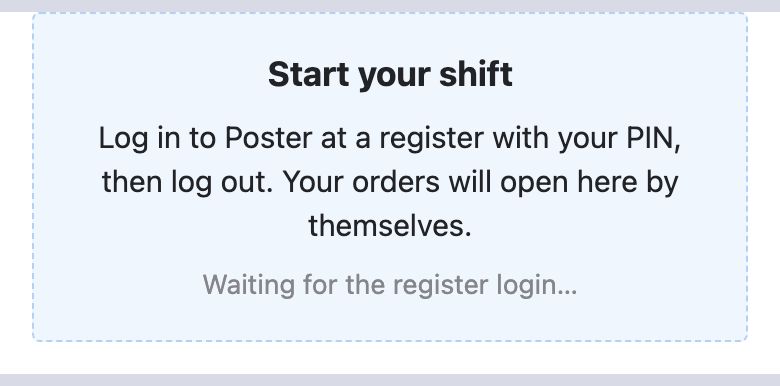
Until you log in, «Start your shift» stands in place of the orders: log in to Poster at a register with your PIN, then log out. The page waits for the login and opens the orders by itself.
Only a PIN login counts. Switching waiters with the register's quick switch does not open the shift on the phone.
The cash shift is closed — the phone says «The cash shift is closed», and phone orders are closed. They open once the register opens a shift and you log in with your PIN again.
Another branch. If you log in at a register of another branch on the same Poster account, «Orders» on your phone switches to that branch, and the managers of both branches get a Telegram message.
Managers need no register login.
The rule turns on by itself once the venue's registers start reporting staff logins to us (our QR✓OK app on the register does it). Until then «Orders» opens without a login.
Before the register login no orders show.
Orders
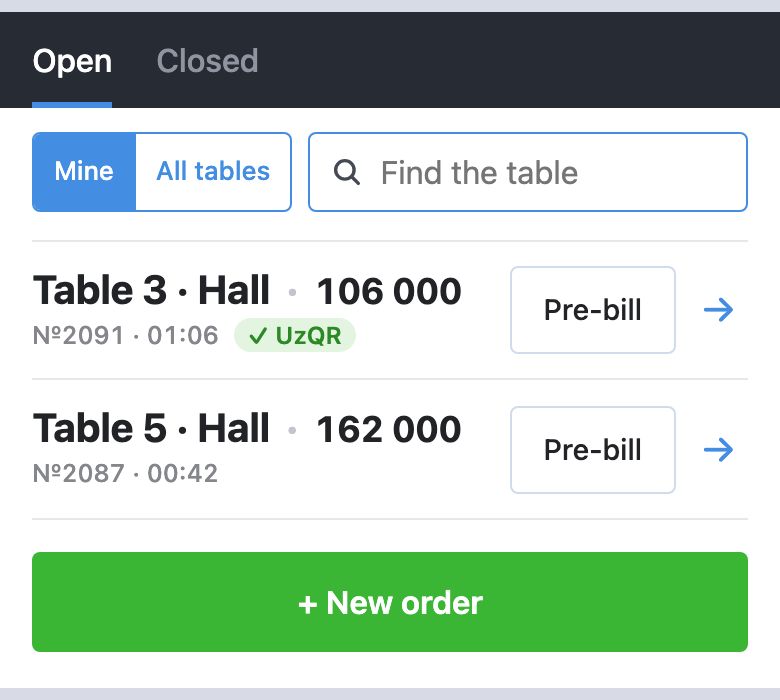
On top are today's numbers. Below are the tabs: «Open» — today's open orders from the Poster register, «Closed» — those closed today; a manager also has «Stop list». Each row shows the table and the sum in large type, with the order number and the time under them. «+ New order» is under the list.
«Mine» — orders that Poster has on your name. «All tables» — every open order of the spot. The «Find the table» field next to them finds a table by a dish — more.
The list refreshes itself: orders opened or closed at the register appear or go. In «Orders» on the home screen you can also pull the list down to read it again at once.
«✓ UzQR» means the guest paid the pre-bill by UzQR: the bank's notice came to the payments group. The order itself shows when, and if dishes were added after that, how much is still due. The order still has to be closed at the register.
Tap an order to open it. An open order refreshes itself: changes made at the register show within 15 seconds. «Pre-bill» on the right prints the pre-bill without opening the order. When your order has dishes that have not gone on a kitchen ticket yet, «Kitchen ticket» stands there instead.
A new order shows in the list once it has at least one dish.
«Closed» lists today's orders closed at the register: table, sum, time and how it was paid. Tap one to see what was in it and an «Order history» button. «Mine» or «All tables» here too.
The dot next to the name on top is the connection: green — all is well, yellow — the register with the QR✓OK app is not connected, red — the phone has no internet. Tap it for the details. While the register is not connected, orders on the phone can only be viewed: the buttons that need the register fade, and a tap says why.
Orders. Tap a row to open the order.
Today's numbers
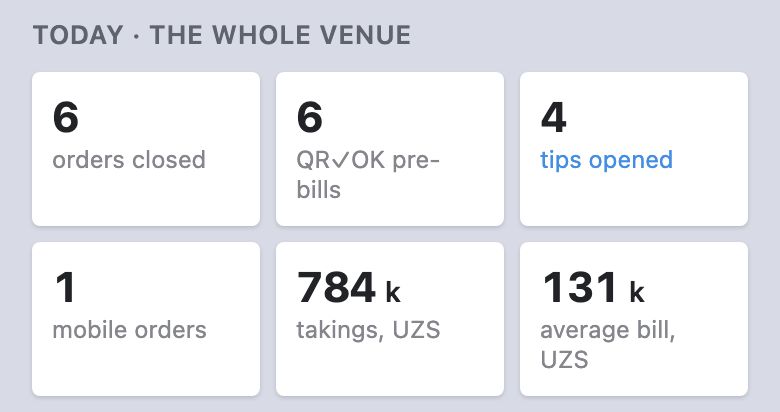
Above the orders are three tiles for today, since midnight Tashkent time:
«orders closed» — how many of your orders (those Poster has on your name) were closed at the register.
«QR✓OK pre-bills» — how many of your orders got our pre-bill with the UzQR and tips codes. An order counts once, however many times its pre-bill was printed.
«tips opened» — on how many of your bills guests opened the tips page: scanned the tips code on the pre-bill or on the phone's screen. Tap the tile for the list of those orders (below).
For the venue's manager the tiles count the whole venue: the heading says «Today · the whole venue». Under them the manager has a second row: «mobile orders» — how many orders were changed from phones today, «takings, UZS» — the sum of the closed orders, and «average bill, UZS».
What these numbers do not know. Whether a guest left a tip, and how much, we cannot see: the money goes from the guest's card straight to the waiter's card, past us. A UzQR payment we see only when the bank's notice reaches the payments group — then the order shows «✓ UzQR» in the list. The tiles do not count payments.
Today for the manager. The «tips opened» tile can be tapped.
Where guests opened the tips
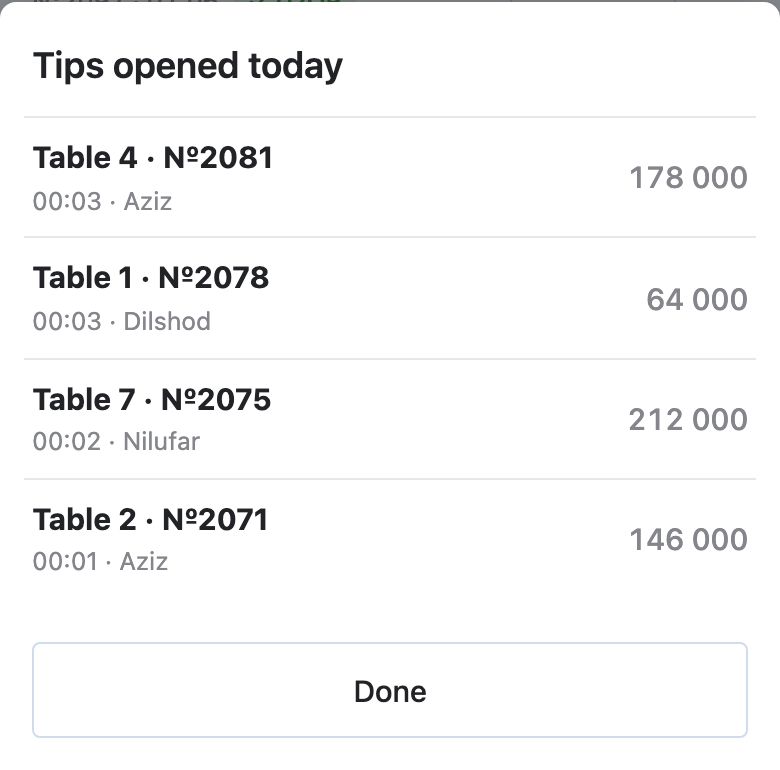
Tap the «tips opened» tile to open «Tips opened today»: the bills whose tips page a guest opened today, newest first. Each row has the table and the order number, the time the page was first opened, and the bill's sum. Tap a row to open that order's history.
A waiter sees only their own bills.
A manager sees every bill of the venue, each row with the name of the waiter whose order it was.
A row means only that a guest opened the tips page. Whether they left a tip, we do not know.
Tips opened today — the manager's, with the waiters' names.
Find the table
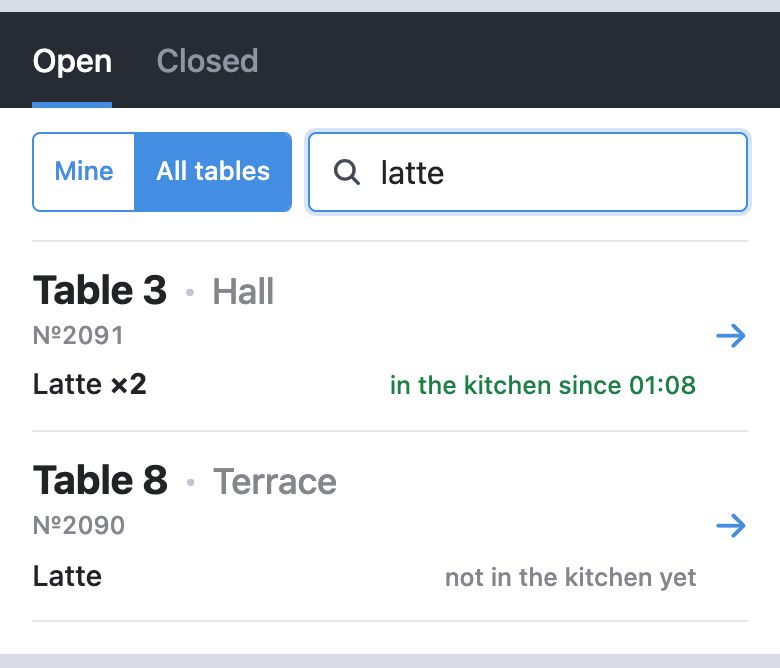
Carrying a dish and not sure whose table it is? The «Find the table» field above the list searches the dishes of the open orders.
Tap the field and the switch turns to «All tables» by itself: the search covers every table of the spot. With nothing typed, it shows what went to the kitchen in the last hour, newest first.
Type the dish, for example «latte». The orders with it show up: the table and the hall, the waiter, the order number, how many, and on the right «in the kitchen since 14:11» or «not in the kitchen yet». Words need not be whole, as in the dish search.
Tap an order to open it. Leave the field and it empties, and the list is back as it was.
Find the table by a dish.
A new order
Tap «+ New order» under the list.
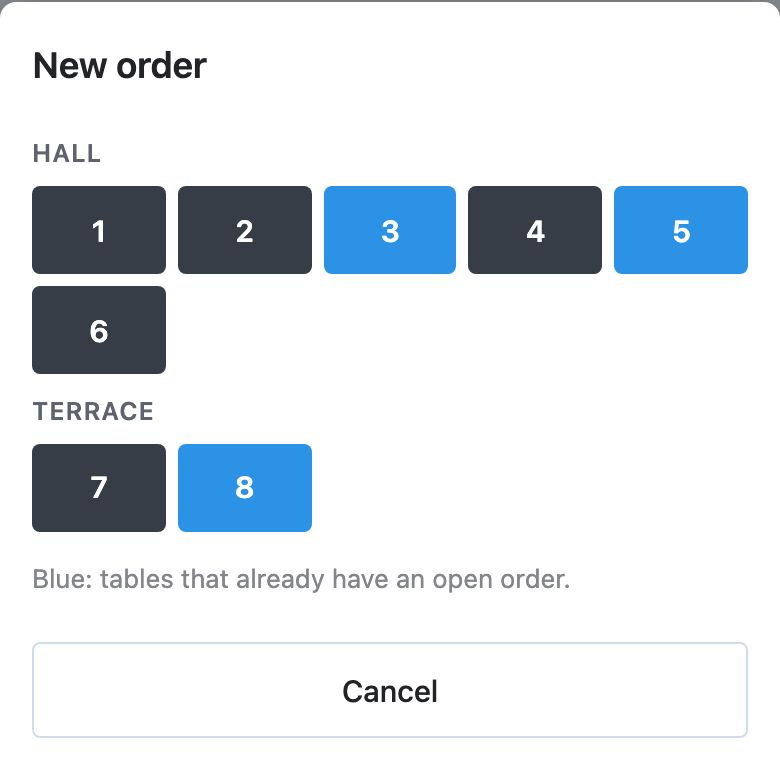
Tap a table. The tables are the ones in Poster, by hall. The order opens in Poster on your name at once, and the phone shows the order screen with the dish search.
Blue tables already have an open order. Tap one and the phone asks «Table 5: there is an order already», offering «Open order №…» or «A new order at this table».
A new order: tap a table.
Dishes
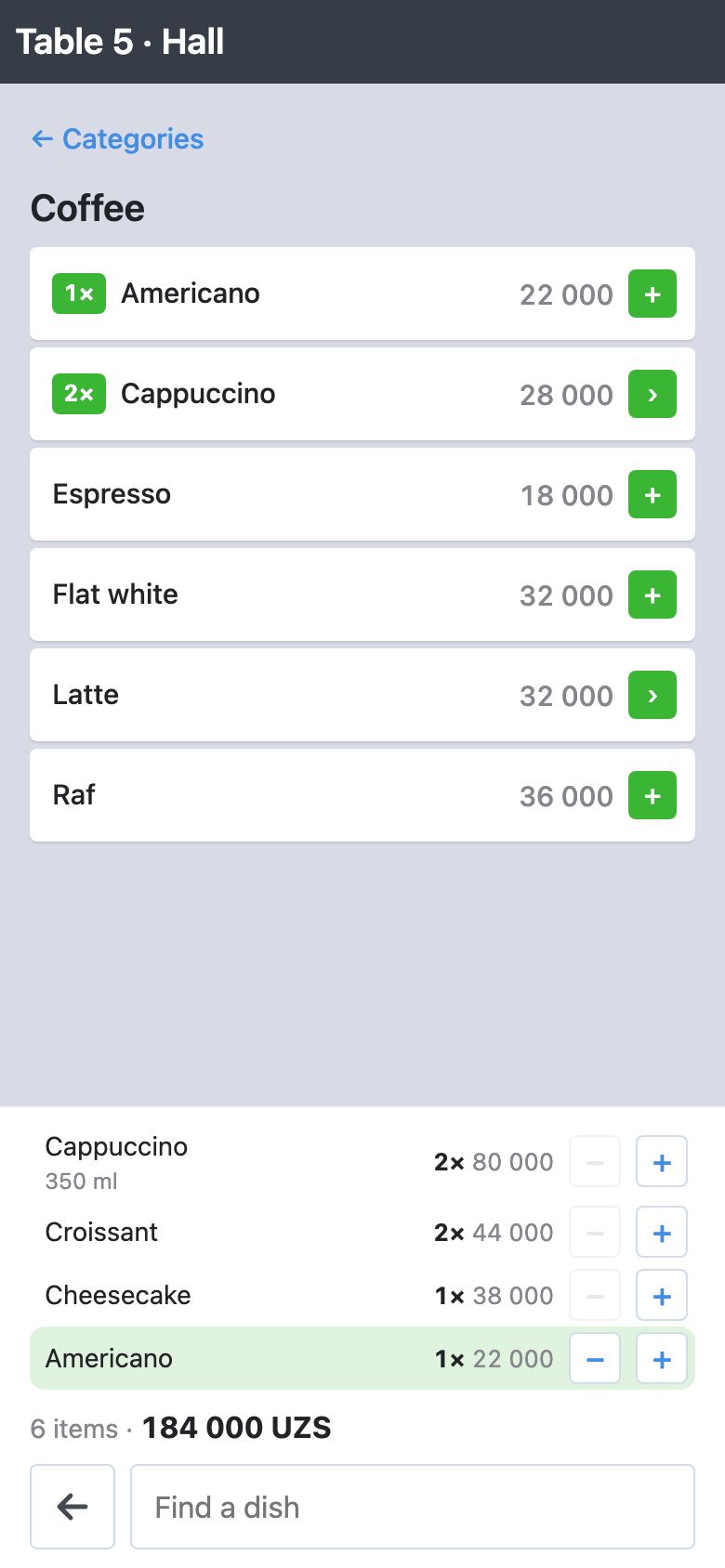
Find the dish with the search — the «Search» field at the bottom of the order (more). Or tap the blue «+» at the bottom right to open the venue's menu from Poster.
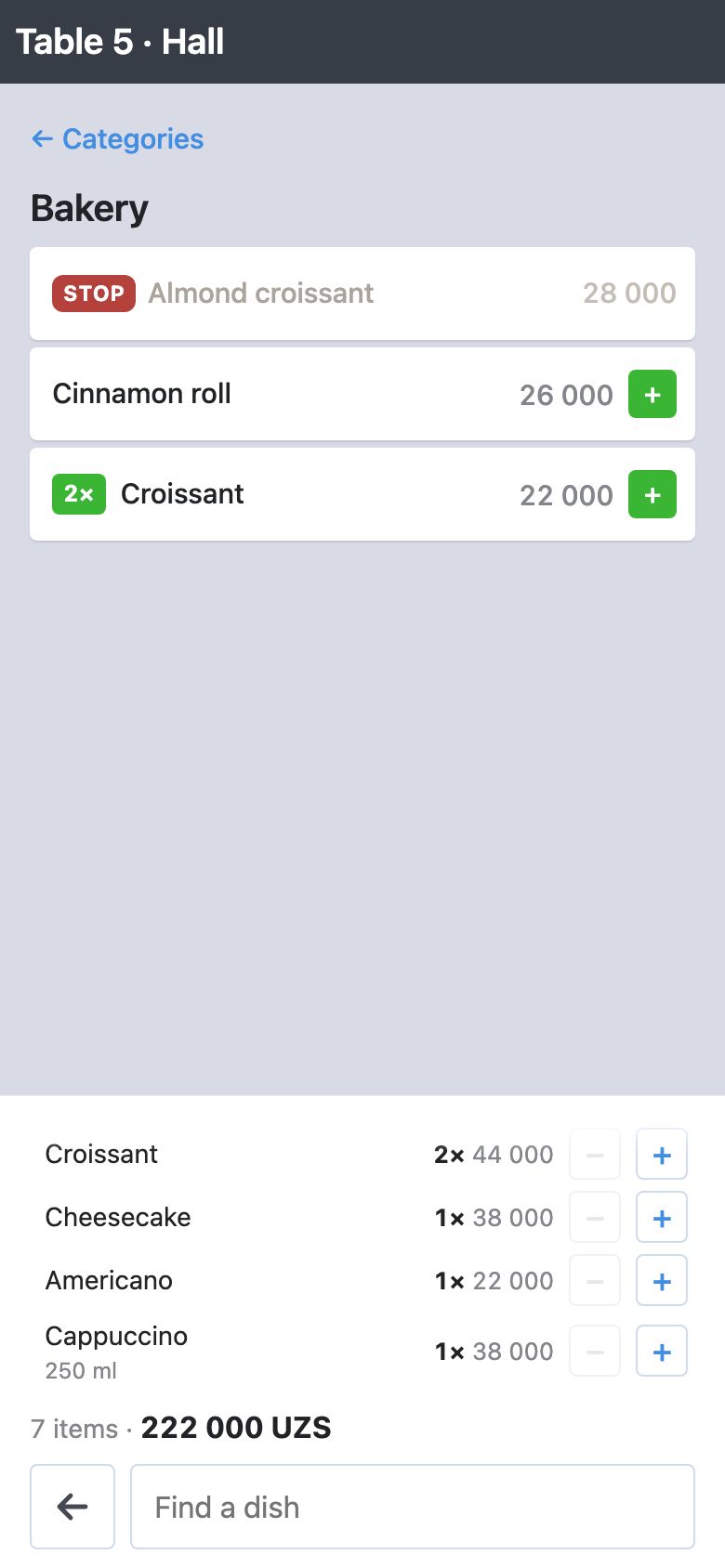
The menu is laid out as at the register: the category tiles on top, and «Frequent» under them — the dishes the venue sells most. A tile opens its dishes (and the categories under it, if any); «← Categories» goes back. «Find a dish» at the very bottom of the screen searches the whole menu; after a dish is added the field empties and keeps the keyboard, ready for the next dish. While the search field is active, the order's lines at the bottom step aside to leave room for what is found; the total stays.
A plain dish is added with one tap on its row with «+». The order sits at the bottom of the screen: the line just added lights up, with the total beside it. Tap again to add one more; «−» on a line takes one off until the dish has gone on a kitchen ticket. A dish already in the order carries its count, such as «2×».
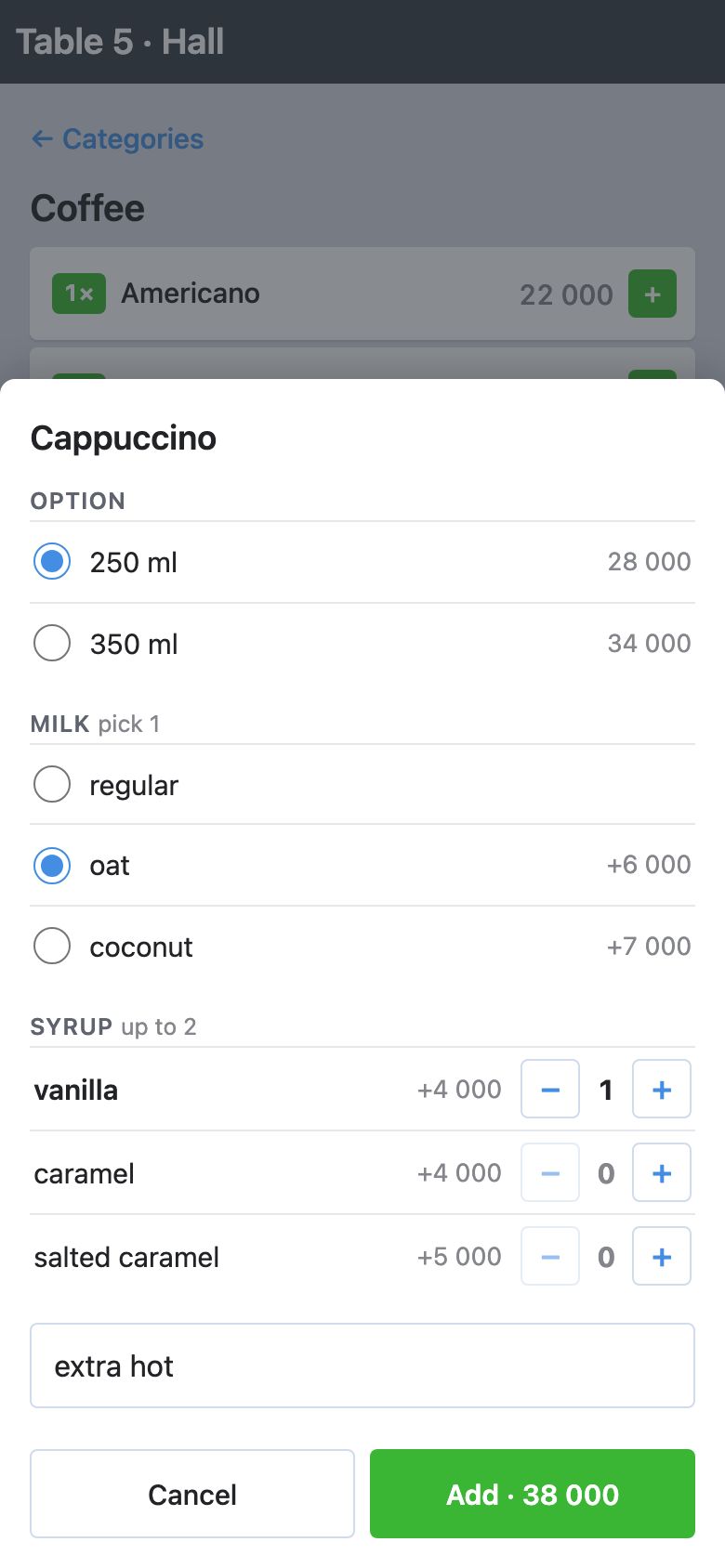
A dish with an arrow «›» opens a choice: «Option» (a size, say), groups of modifiers (each group says its rule: «pick 1», «up to 2»), «Note for the kitchen». The «Add» button shows the total and turns on once everything required is chosen. A plain dish gets its note in the order: tap the dish there (see below).
Go back to the order with the «←» arrow at the bottom, left of the search box.
Tap a dish in the order to open its sheet: the modifiers it has and its note for the kitchen. The modifiers can change until the dish has gone on a kitchen ticket; after that, only the note. A dish's note shows at the register and is printed on the kitchen ticket under the dish.
The order comment is the speech-bubble icon at the top right, for example «A candle in the cheesecake». When there is one, a dot lights on the icon. It is printed on the kitchen ticket too.
The order history is the clock icon next to it: who opened the order and when, added or removed a dish, sent a kitchen ticket, printed the pre-bill — from a phone or at the register.
The menu from Poster. Categories and search, a plain dish is one tap; the order shows at the bottom.Options and modifiers. The price on «Add» updates as you choose.
Dish search
The «Search» field at the bottom of the order, next to the buttons. Tap it and start typing: the dishes found in the whole menu take the order's place.
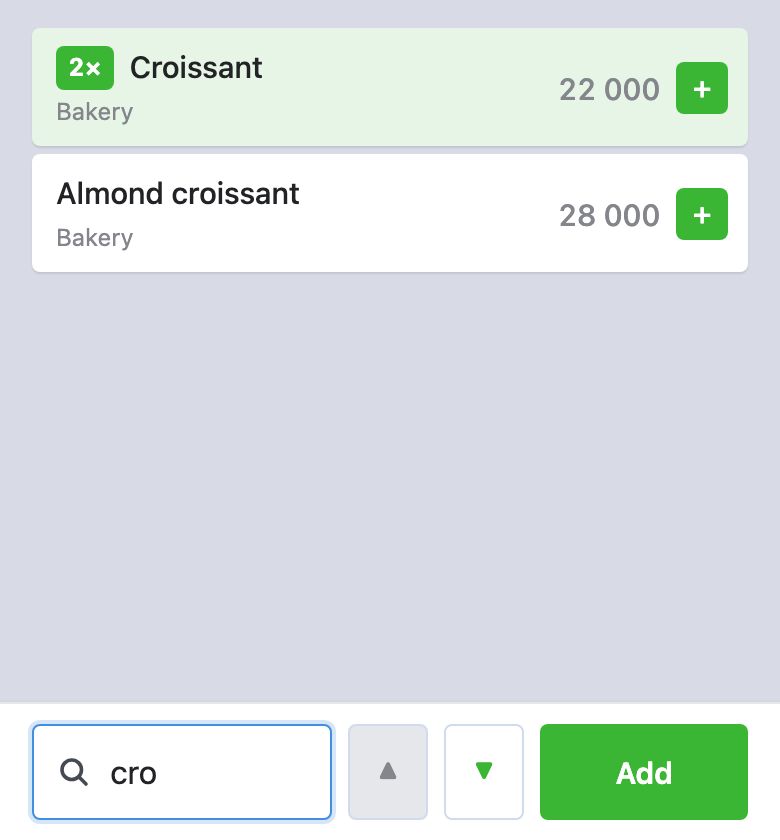
Words go in any order and need not be whole: «cro alm» finds «Almond croissant», «lat ais» finds «Айс Латте».
Cyrillic dish names can be typed in Latin letters in the usual spellings: «ais», «ays» and «ajs» find «Айс», «kapuchino» and «cappuccino» find «Капучино», «xachapuri» and «khachapuri» find «Хачапури», «cezar» and «tsezar» find «Цезарь». It works the other way round too: Cyrillic letters find dishes with Latin names.
Tap a dish found and it goes into the order, the search closes, the keyboard goes down and the dish's line in the order lights up. A dish with an arrow «›» opens its options and modifiers first.
A dish already in the order carries its count, such as «2×»; a dish on the stop list is grey and marked «stop».
The first dish found is highlighted. The green «Add» button right of the field or «Done» on the keyboard adds it; ▲ ▼ beside the field move the highlight to the next dish.
A new, empty order opens with the search and the keyboard already up.
To close the search without picking anything, tap «Cancel» right of the empty field, or tap outside the field.
«cro» finds both croissants.
Hints: what to offer the guest
«Frequent» in the menu — under the category tiles, the dishes your venue sells most.
Search results go by how well they match — names that begin with what you typed first — and among equals what sells more comes higher.
Dishes on the stop list are left out of the hints.
Where this comes from. Once a day we count two weeks of sales from your venue's closed checks. In a new venue the hints appear once there are enough checks.
Quantities
+ and − next to a dish change the quantity. When there is one, «−» removes the dish from the order.
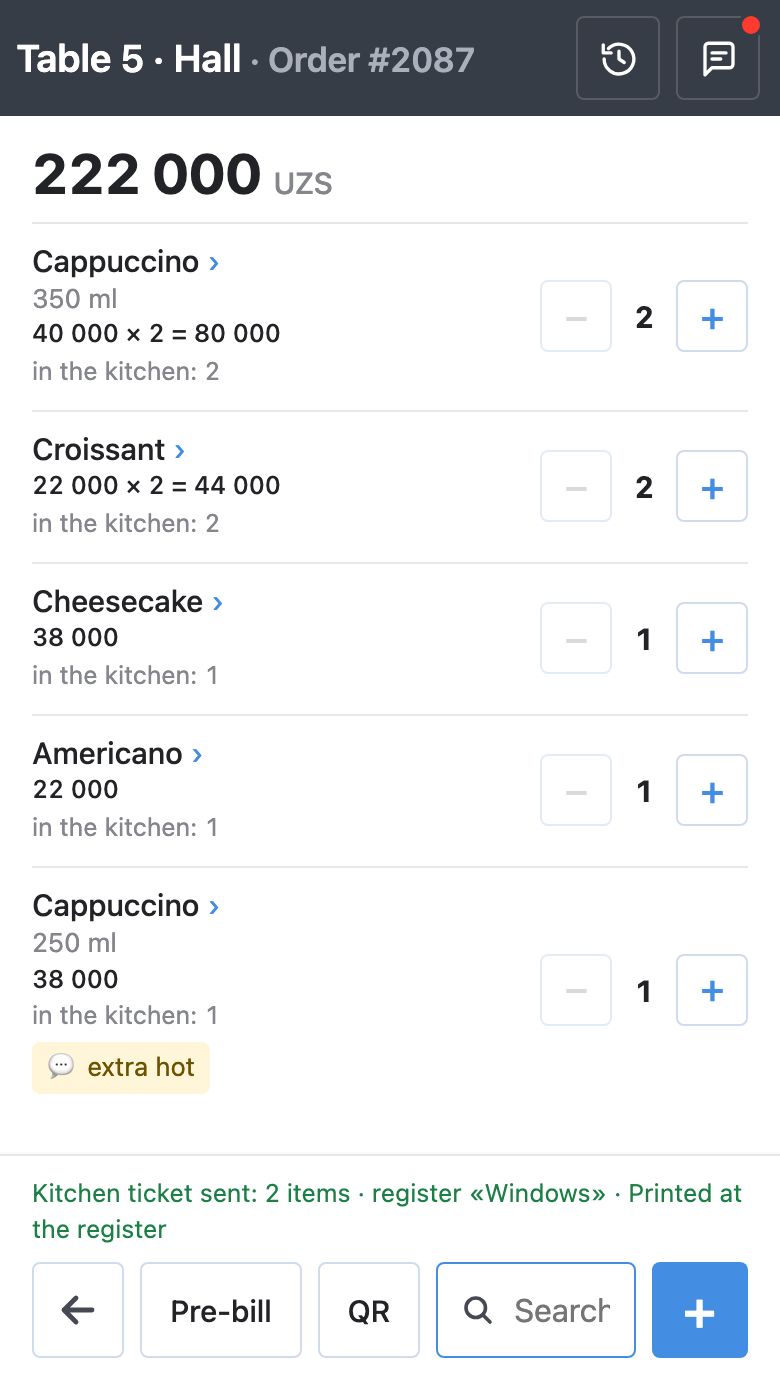
What went on a kitchen ticket from the phone cannot be reduced from the phone. If 2 cappuccinos were sent, you cannot make it 1 or remove them — you see «This is already in the kitchen — an administrator removes sent items at the register». Under such a dish it says «in the kitchen: 2», and its «−» does not work. Adding always works: what you add goes on the next kitchen ticket.
The order. At the bottom: what became of the last print, «Pre-bill», «QR» and the search.
Kitchen ticket
Add the dishes and tap «Kitchen ticket» at the bottom; it shows only when the order has something not yet on a kitchen ticket, and while it is there «Pre-bill» and «QR» step aside. The button asks «Send the kitchen ticket?» — tap again and it goes. An accidental double tap does not send it: the second tap counts only a moment after the first.
Only what is new goes on the ticket — whatever was not on earlier tickets from the phone. The bottom line says how many items went: «Kitchen ticket sent: 2 items».
The register prints the ticket, usually within 2–4 seconds: on the printers of the stations set up in Poster (bar, kitchen), or on the receipt printer when there is no station printer. The ticket shows the table, the order number, your name, the time, the mark «с телефона» (from the phone), the dishes with their counts and notes, and the order comment.
If there is nothing new, you see «No new dishes: everything is already on a kitchen ticket». If the register did not print the ticket, those dishes count as not sent again: check the register and tap «Kitchen ticket» once more.
«Ready» notices from the kitchen
When the kitchen runs Poster's Kitchen Kit (the app for the kitchen tablet), the waiter learns on the phone that a dish is ready — no trips to check the pass.
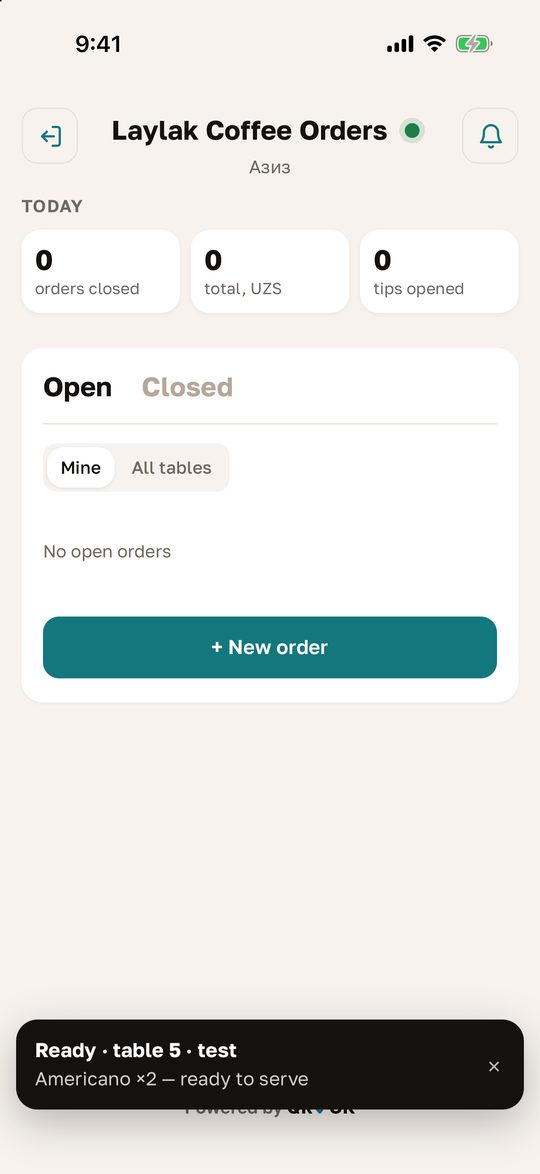
What comes. The cook marks a dish ready in Kitchen Kit, and the waiter the order is under in Poster gets «Ready · table 5» with the line «Americano ×2 — ready to serve». Without Kitchen Kit in the kitchen Poster does not know a dish is ready, and no notice comes.
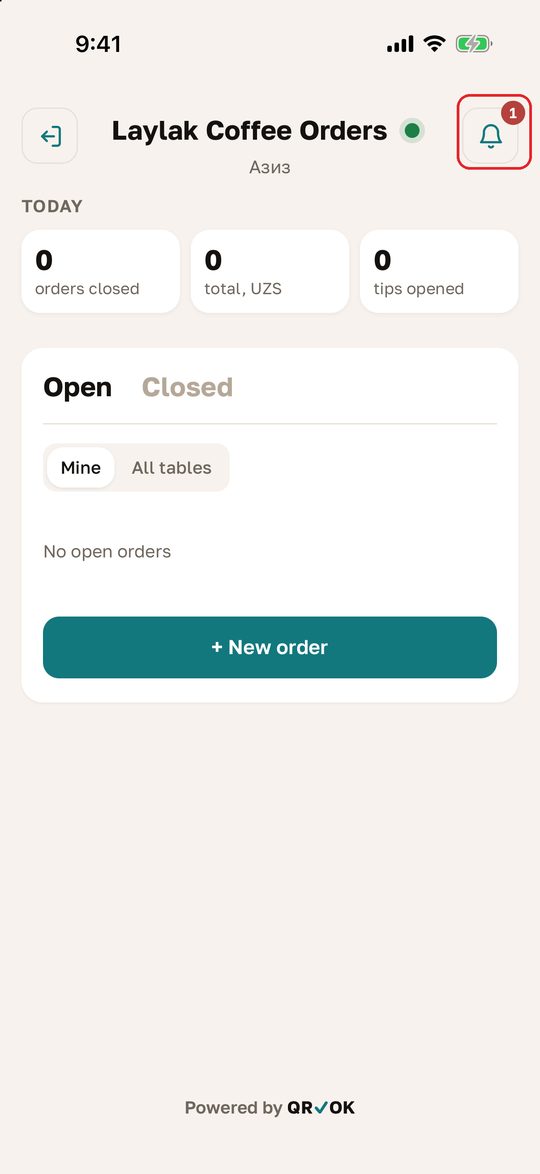
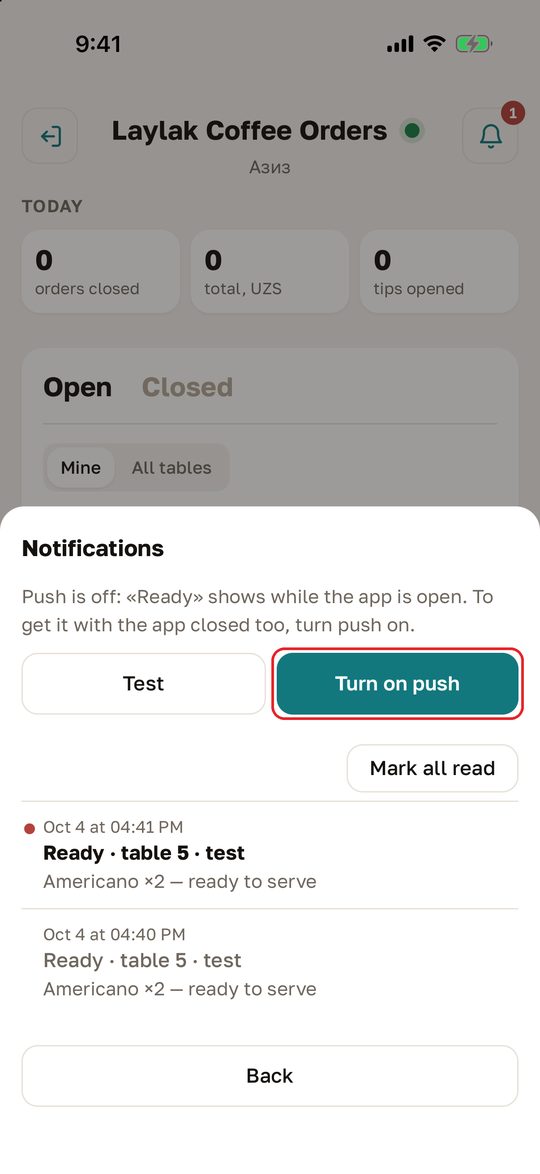
Turning push on. The bell at the top right of «Orders» → «Turn on push» → allow notifications. Then «Ready» arrives even when the app is closed or the phone is locked. On an iPhone, only in «Orders» installed on the Home Screen (how).
While the app is open, «Ready» shows as a card at the bottom of the screen, even with push off. Every notice stays in the list under the bell, and the number on the bell counts the unread ones. «Mark all read» clears them.
«Test» under the bell sends a test «Ready · table 5 · test» in 8 seconds: put the app away or lock the phone and see how it arrives.
1. The bell: the number counts unread notices2. «Turn on push» and the list of notices3. «Ready» in the open app
Pre-bill
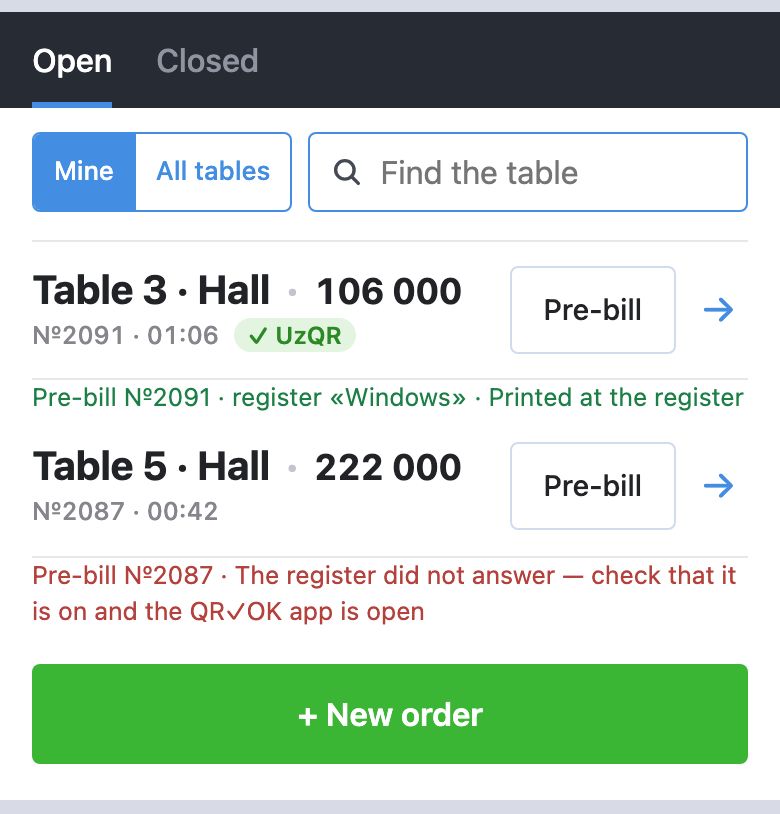
«Pre-bill» is both in the list row and at the bottom of the order screen. The register prints the order's pre-bill with the UzQR payment code — the same one as our «Пречек с UzQR» button at the register. Take it to the guest as usual.
If the venue has «Bill by QR on screen» on, the order also has a «QR» button: the payment code with the order's sum shows on the phone's screen. More in the waiter's guide.
A pre-bill from the list. Top: printed. Bottom: the register did not answer.
Stop list
A dish has run out: the manager puts it on the stop list, and waiters cannot add it to an order from the phone.
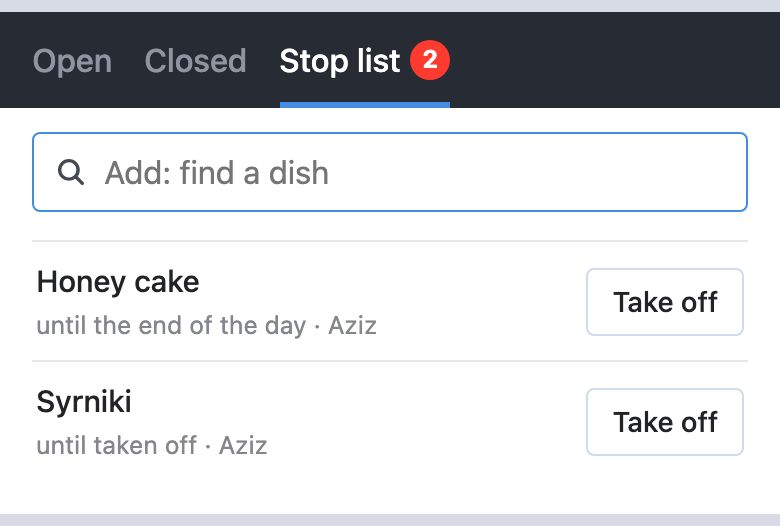
The manager keeps it. The «Stop list» tab next to «Closed» is there only for the venue's manager (and for a chain's manager, at each of its branches). Waiters do not see this tab. The red number on the tab is how many dishes are on the stop list now.
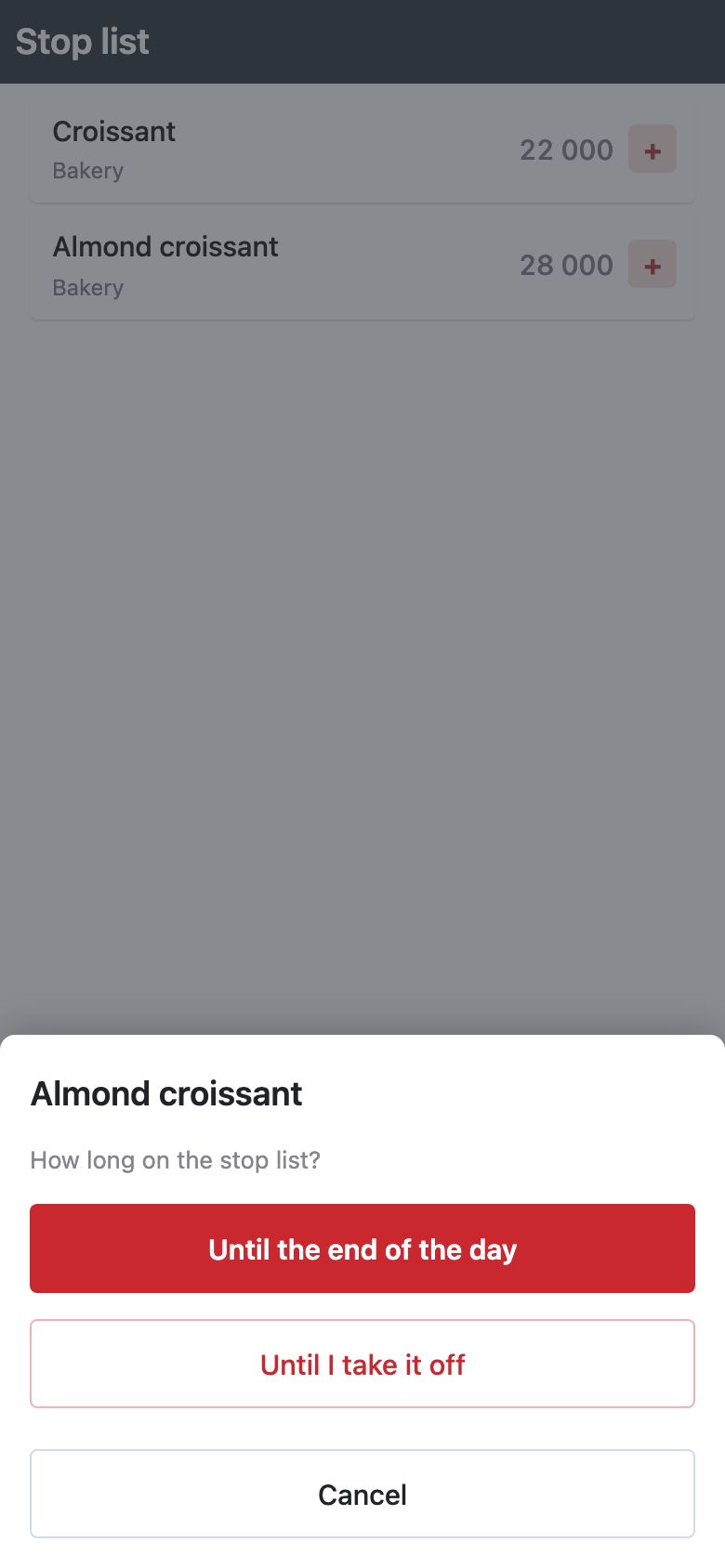
Adding. Tap the «Add: find a dish» field: the search opens over the list, with the field and a «Cancel» button just above the keyboard. Start typing a name: the dishes found carry a «+». Tap the dish and choose how long: «Until the end of the day» — until 05:00 Tashkent time, when the new day starts — or «Until I take it off».
The list shows the dish, how long («until the end of the day» or «until taken off») and who added it. «Take off» puts the dish back on sale at once.
What waiters see. In the menu and in the search the dish is grey and marked «stop» and cannot be tapped; the «+» of such a dish in an order does not work, and the hints leave it out. Even if a phone has not yet heard of the stop list, the server will not add the dish to an order.
This stop list is QR✓OK «Orders» only. At the Poster register the dish is not hidden and sells as usual.
The stop list as the manager sees it.Adding: the dish and how long.A waiter sees the dish grey, marked «stop».
What the messages mean
After «Kitchen ticket» or «Pre-bill», the line above the buttons tells you what is happening to the print. Once a register has taken the command, its name in Poster comes first, such as «register «Windows»».
«Waiting for the register…» — the command is sent, no register has taken it yet.
«The register is printing…» — a register took the command and is printing.
«The register passed it to Poster, waiting for the print…» — a kitchen ticket: the register handed it to Poster, and Poster prints it on the station printers. If Poster stays silent: «The register passed it to Poster; Poster has not reported the print yet».
«Not printed — check the kitchen printer and send again» — Poster reported that the kitchen ticket did not print: «Kitchen ticket» is back on screen, tap it again once the station printer is fine.
«Printed at the register» — done, pick up the ticket or the pre-bill.
«The register did not print: …» — the register got the command but the printer failed; the reason follows the colon. Check the printer and tap again.
«The register did not answer» — within 45 seconds no register with our app and a printer took the command. Check that the register is on and the QR✓OK app is open on it, then tap again.
Other messages:
«You are not allowed to do this — ask the manager» — this feature is not switched on for you.
«The register is offline: until it is back, change the order at the register» — the register with the QR✓OK app is not connected, see the questions.
«This order is already closed at the register» — the order is closed and cannot be changed. Go back to the list of orders.
«Poster did not answer, try again» — no connection to Poster; try again in a few seconds.
Questions
The register is off — what still works?
While the register with the QR✓OK app is not connected, orders on the phone can only be viewed: a new order, dishes, comments, the kitchen ticket and the pre-bill are unavailable — their buttons fade, and a tap says why. A register in Poster's offline mode keeps its own copy of the order, and a change from a phone meanwhile would get lost or double a dish. Turn the register on and open the QR✓OK app on it: once the dot on top is green again, everything works.
A dish is not in the menu — what do I do?
The menu comes from Poster: that is where dishes are hidden and where it is set which spot sells them. A new dish added in Poster shows on the phone within 5 minutes; if «Orders» is already open, close it and open it again. If the dish is not in Poster either, an administrator adds it. A grey dish marked «stop» is on the stop list.
Can I search in Latin letters?
Yes, and Cyrillic letters find dishes with Latin names too — examples under «Dish search».
Who sees my changes?
Every change is written into the order in Poster — it shows at the register and in Poster's back office, and other waiters see it under «All tables». On top of that, we log every change made from a phone: which waiter changed what, and when. Poster's own history does not name the waiter for such changes, so when something needs sorting out, the manager asks us.
Can I close or pay the order from the phone?
No. From the phone an order is opened, added to, and its kitchen ticket and pre-bill are printed. Payments are taken and orders are closed at the register as usual, including when the guest pays by QR.
Can I remove a dish that is already in the kitchen?
Not from the phone. An administrator does it at the register, as with any order in Poster.
 QR✓OK
Connect your venueConnect
QR✓OK
Connect your venueConnect